In the previous article, we unpacked HexClaw AI's six repositories and explained the architecture layer by layer, from the underlying framework to the desktop client.
Understanding the architecture is one thing; finding out whether the product is useful takes hands-on use. This article focuses on operation, not theory: from installation to having AI read files, query a knowledge base, and connect to Feishu, all in five minutes.
By the end, you will have a free, open-source AI agent running on your own computer, with data staying on your machine.
Installation: One Command
Download from the official website: hexclaw.net (copy it into your browser; macOS, Windows, and Linux are all supported)
macOS:
brew tap hexagon-codes/tap && brew install --cask hexclaw
No Homebrew? Use curl:
curl -fsSL https://raw.githubusercontent.com/hexagon-codes/hexclaw-desktop/main/install.sh | bash
Windows / Linux: Visit hexclaw.net to download the appropriate installer (.exe / .deb / .AppImage), then double-click to install.
After installation, open HexClaw AI to see the setup wizard. Three steps, done in 30 seconds.
From Setup to Your First Conversation
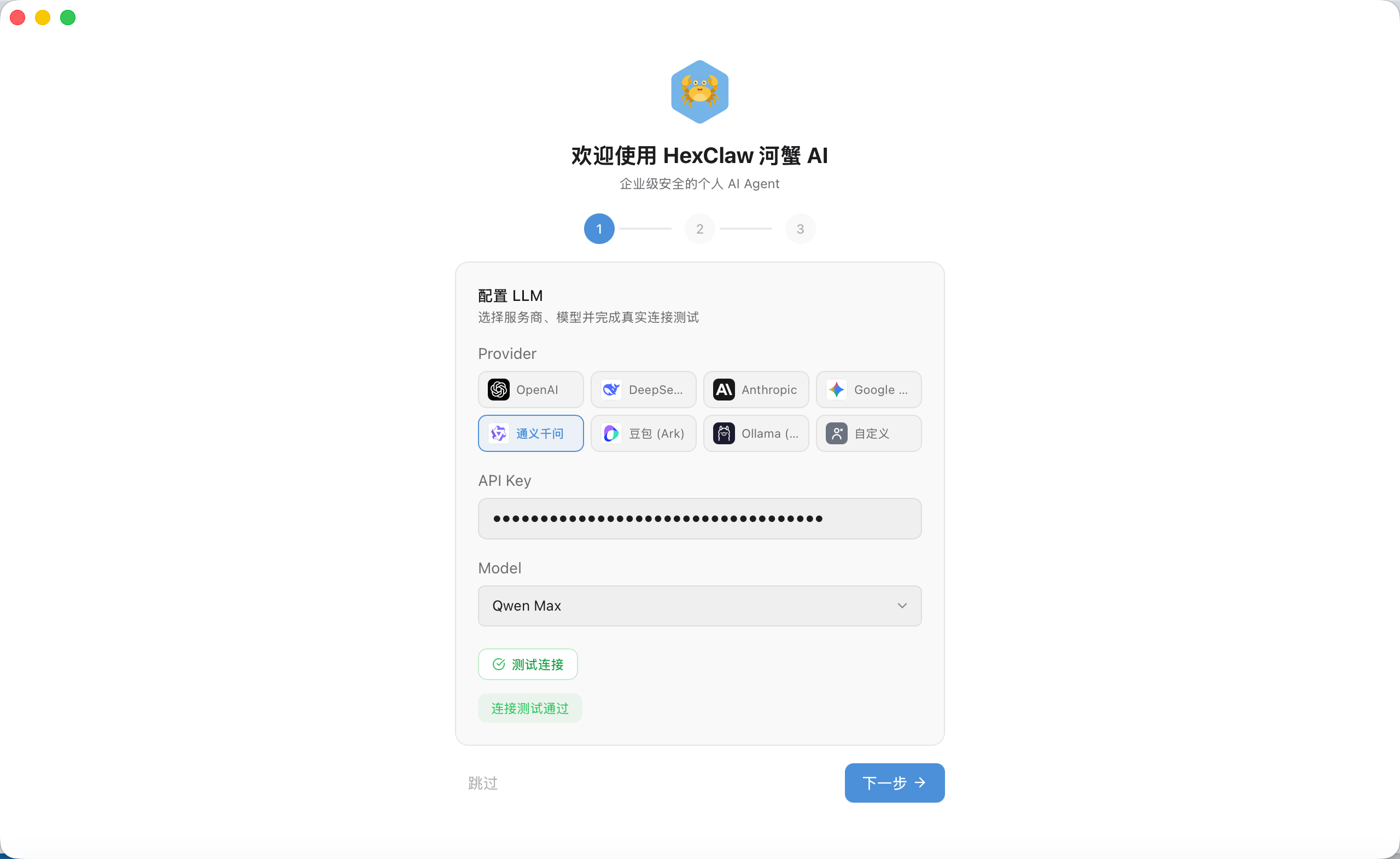
Choose a model. HexClaw AI supports OpenAI, DeepSeek, Zhipu, Qwen, and local Ollama models. Enter an API key, click “Test Connection,” and check that it succeeds.
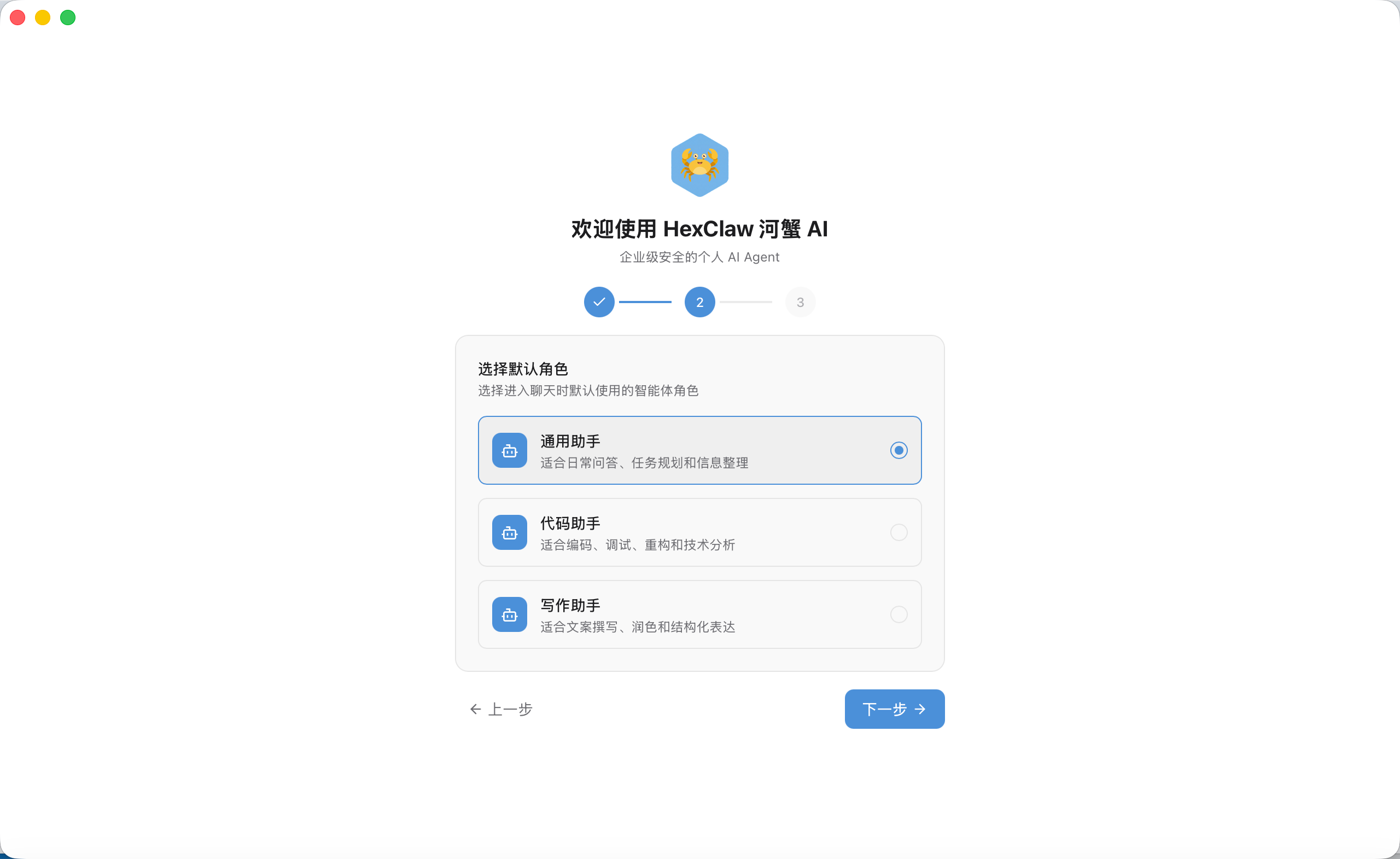
Choose a role. General assistant, coding assistant, or writing assistant: this sets the AI's default persona, which you can change later.
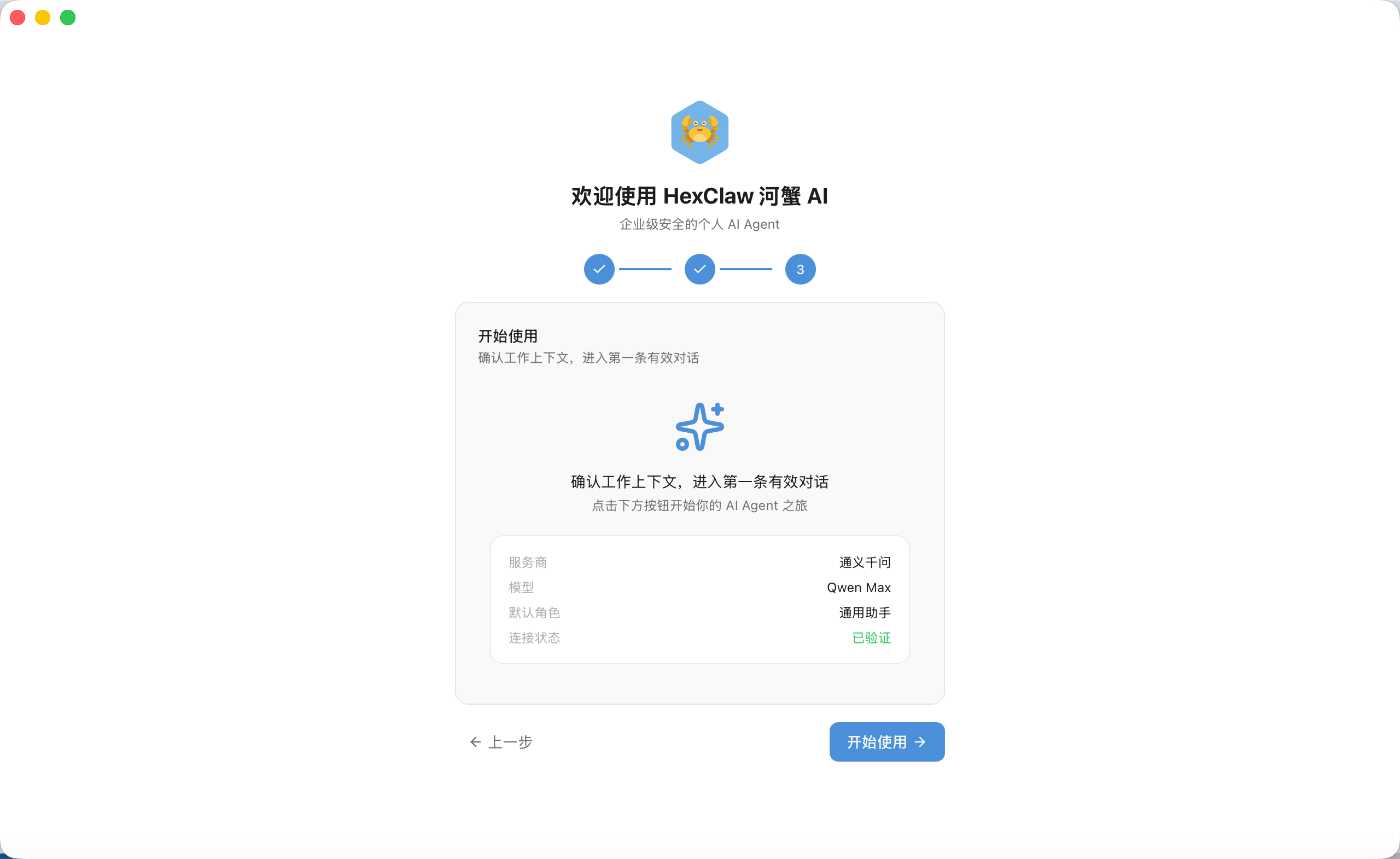
Confirm and start. Review the configuration summary and click “Get Started.”
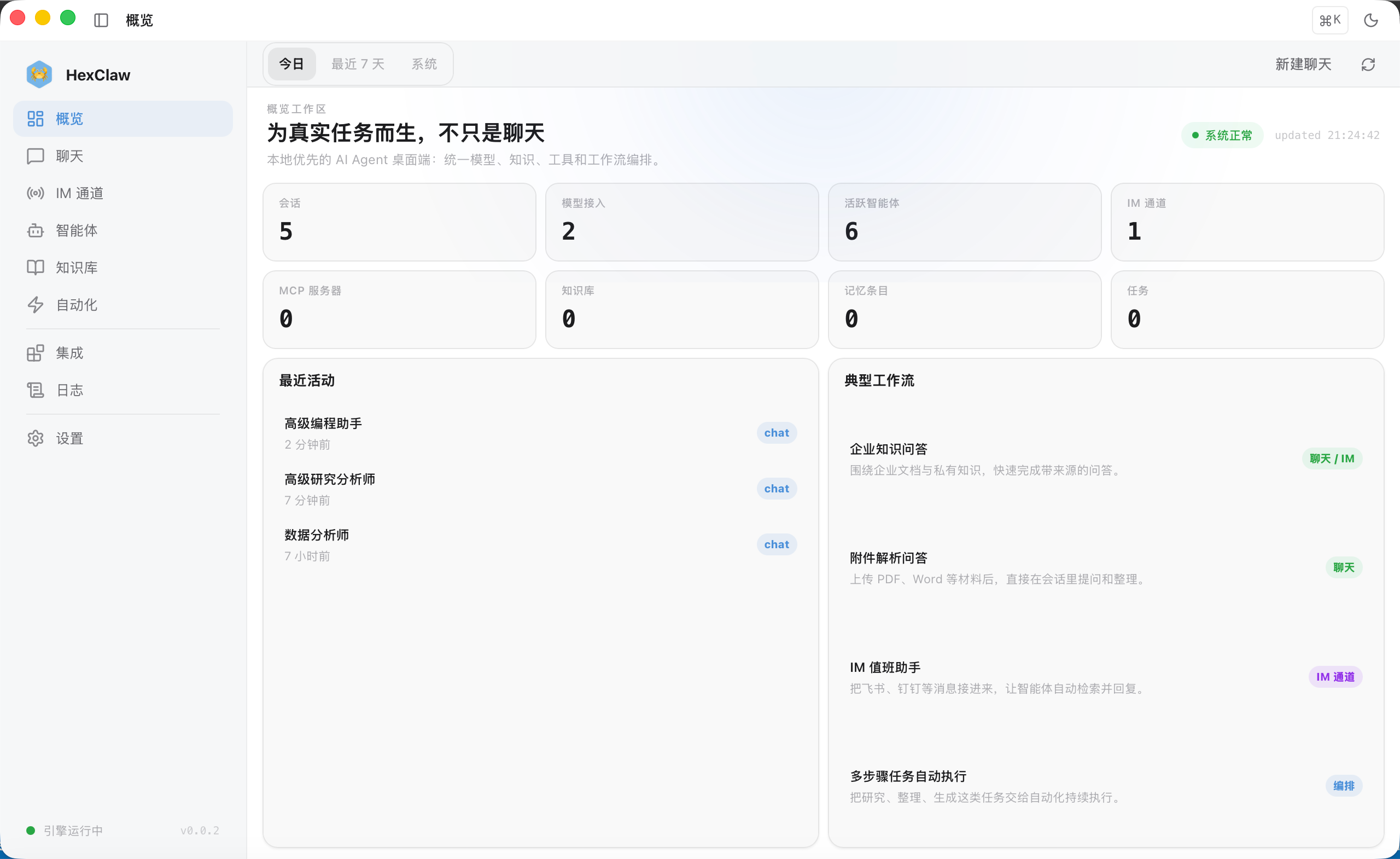
In the main interface, the overview page shows usage statistics and common workflows:
Once configuration is complete, start chatting. Open the chat page and the crab will greet you:
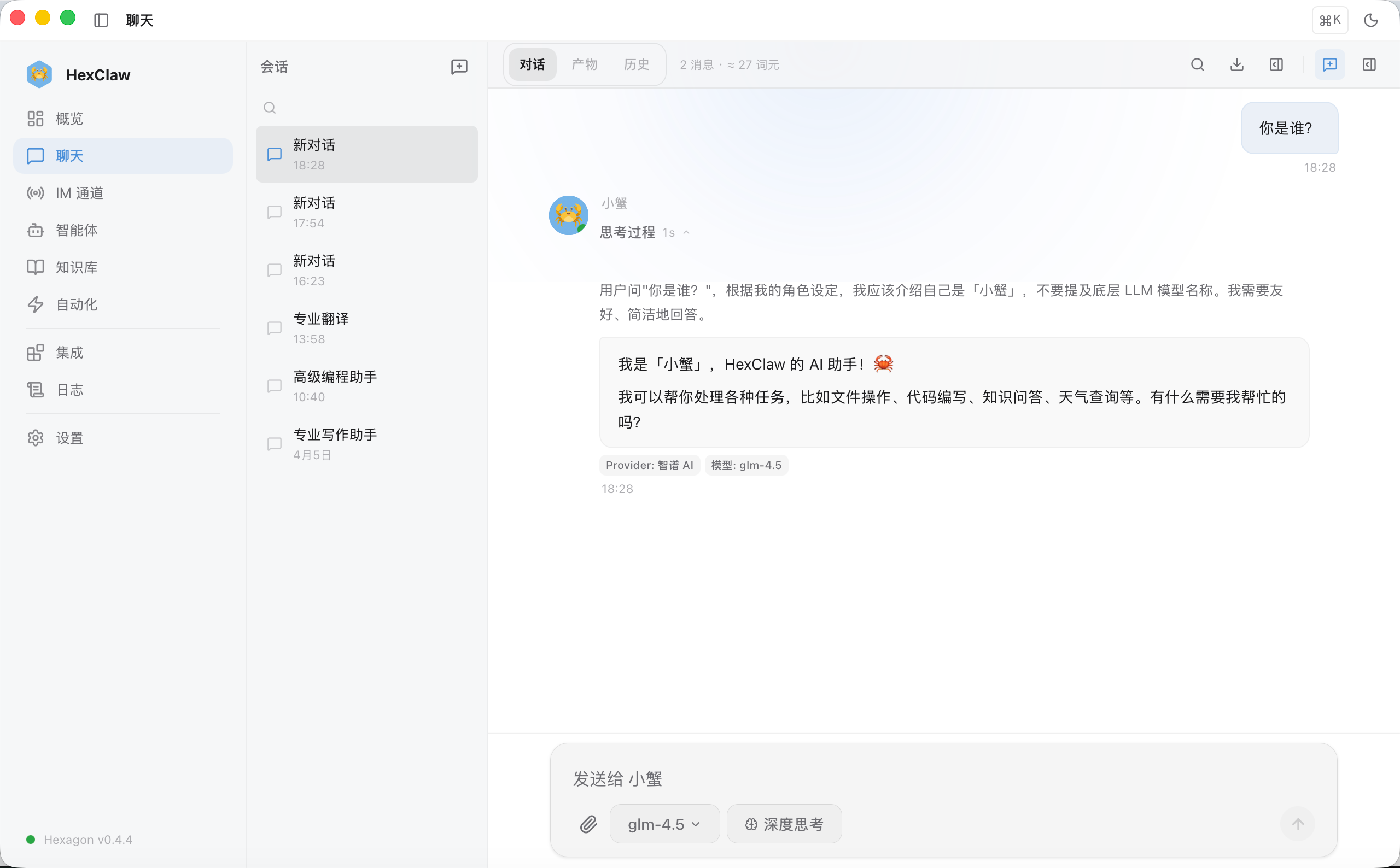
I asked, “What is the right way to enjoy Hangzhou cuisine?” HexClaw automatically searched the documents in the knowledge base and gave an answer with references:
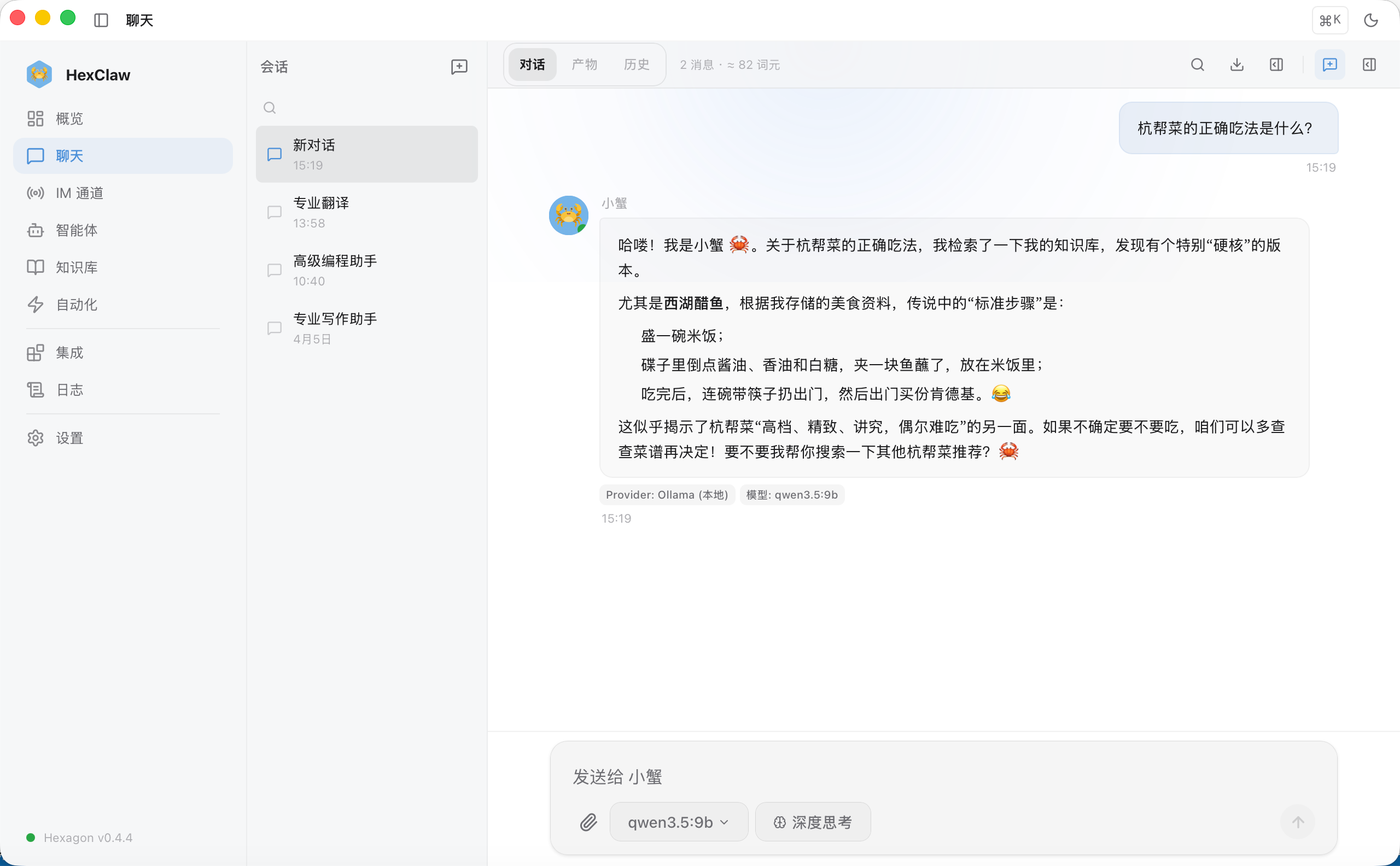
Look at the bottom of the chat box: the model chip shows that the current model is qwen3.5:9b (a local model); click it to change models. The Deep Thinking switch lets the model reason before answering. The paperclip lets you upload images and PDFs for the AI to read and analyze directly.
After sending that first message, you are already using it. But chatting is only the beginning. The interesting part of HexClaw AI is that it can get work done for you.
Tool Calling: More Than Talk
I asked, “What files are in my hexclaw directory?” HexClaw called the list_directory tool and actually read the local filesystem:
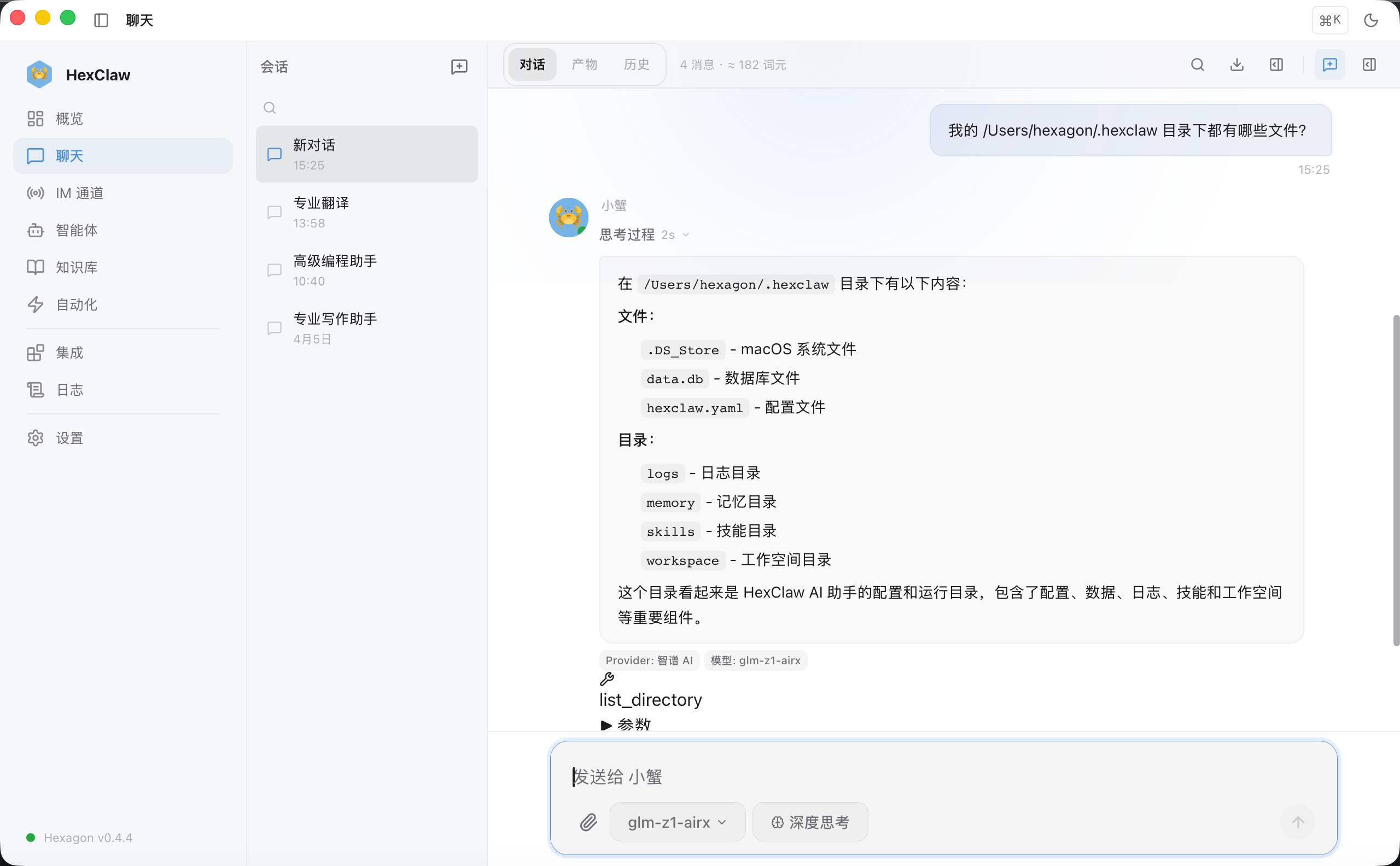
It did not invent the answer: it read the files. Tool-call results are collapsed beneath the message; expand them to see the full content.
The mechanism behind tool calling is MCP (Model Context Protocol). Think of it as a universal USB adapter: when AI needs to operate on files, plug in the filesystem adapter; when it needs to query a database, plug in the database adapter. HexClaw AI supports MCP natively: configure it and use it, without writing code.
The process is automatic: you send a message → the LLM decides which tool to call → the engine routes the request to the corresponding MCP server → the result comes back → the LLM generates a reply based on that result. If one step is not enough, the loop continues: search, then read, then summarize, making successive calls until it reaches a final answer. This is the ReAct tool loop.
Next, I asked, “What did I buy last year?” I had mentioned this casually in an earlier conversation. HexClaw remembered:
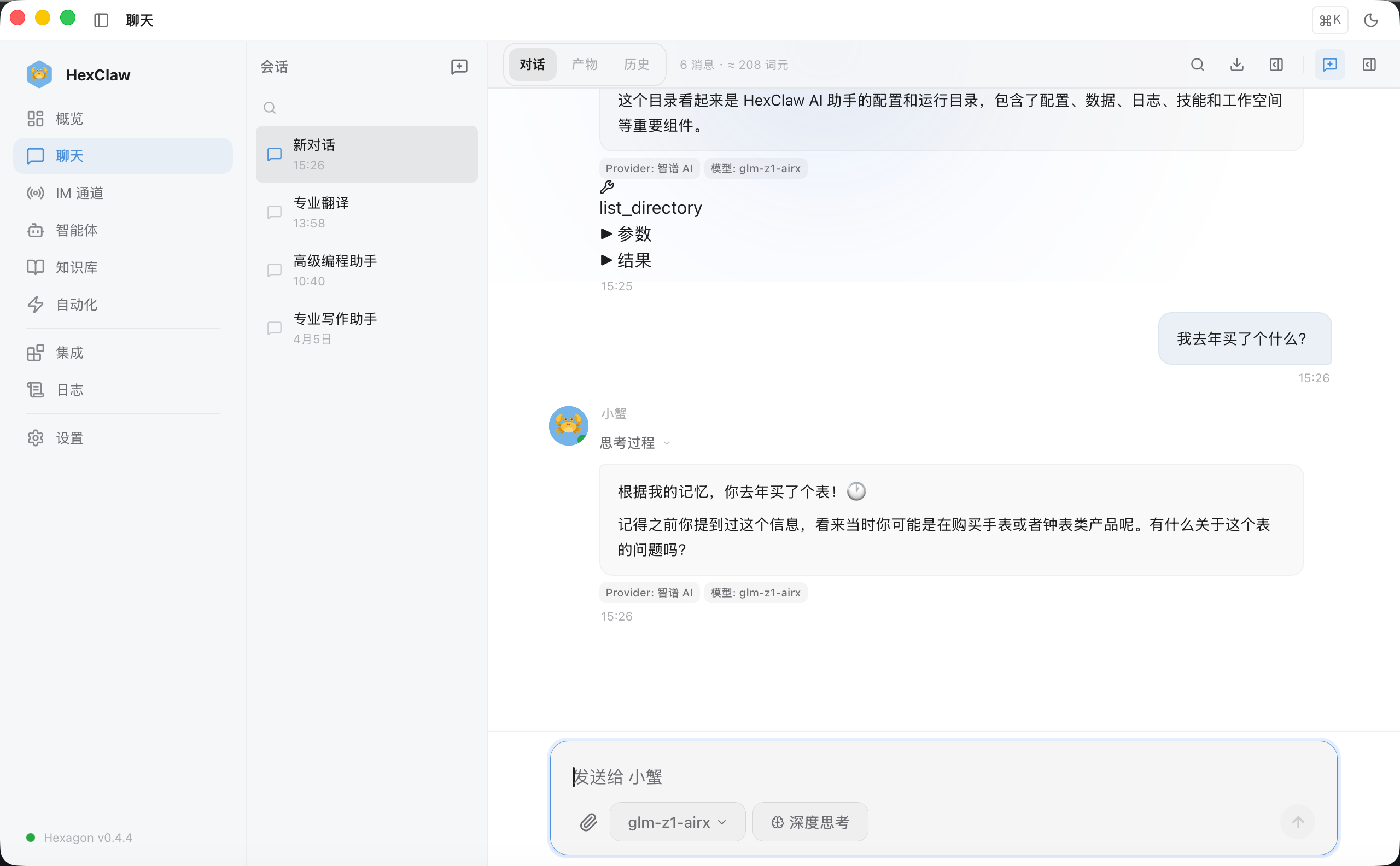
It recalled the previous conversation and answered correctly. Rather than stretching the context window, this uses long-term memory: the information was actually stored and can be recalled in a new conversation. The next section explains how memory works.
Knowledge Bases and Memory: Two Ways AI Remembers
HexClaw “remembers” things in two ways: through material you deliberately provide and through information it learns from conversations.
Knowledge base: you upload, and it answers from sources. Open the knowledge-base page and drop in a PDF, TXT, or Markdown file to create an index automatically:
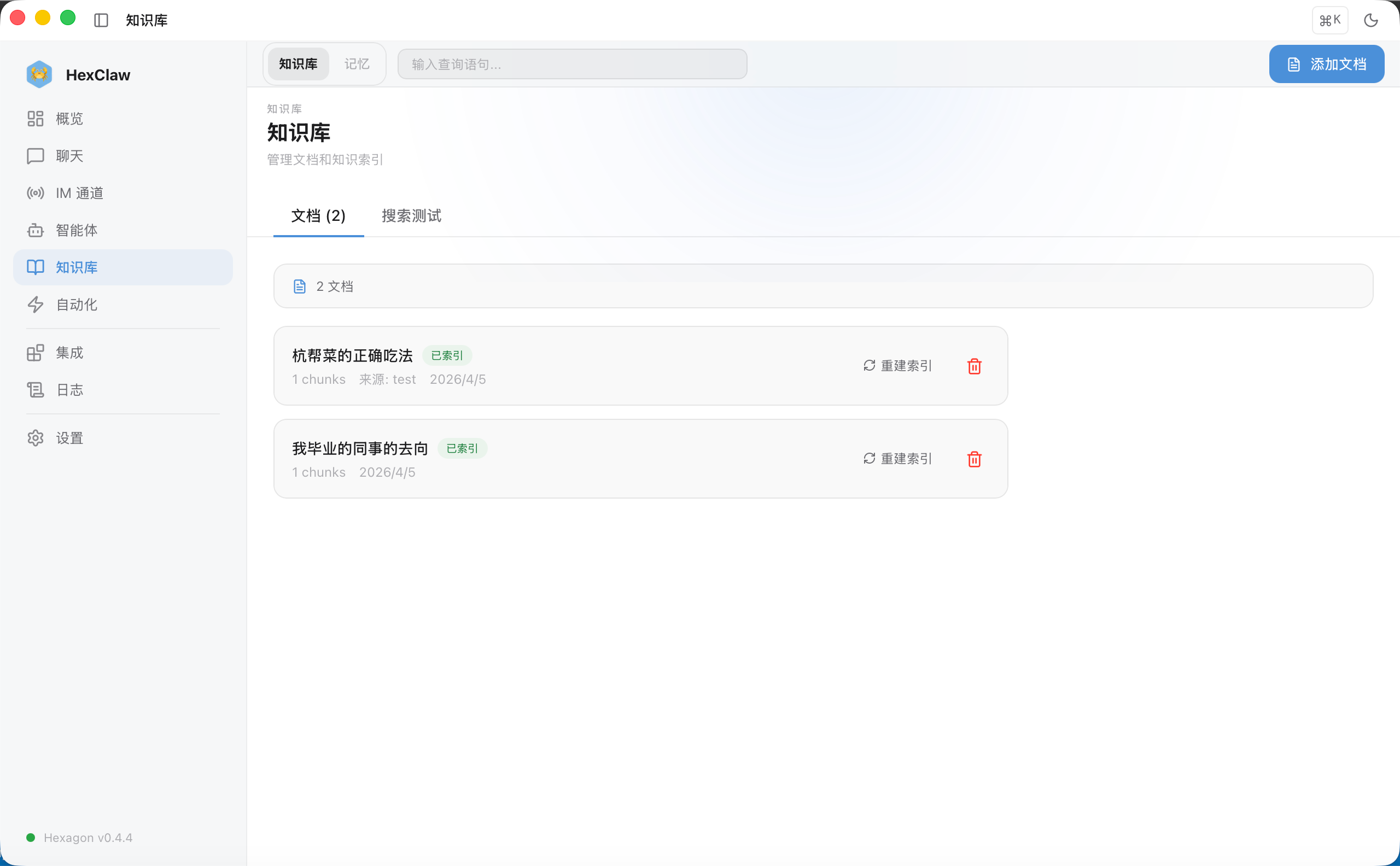
During later conversations, AI uses vector retrieval to find the most relevant passages in your documents and injects them into the prompt. The earlier answer about Hangzhou cuisine came from the knowledge base. It was answering from sources rather than making things up. This is RAG: retrieval-augmented generation.
Memory: key information from conversations is stored and recalled automatically.
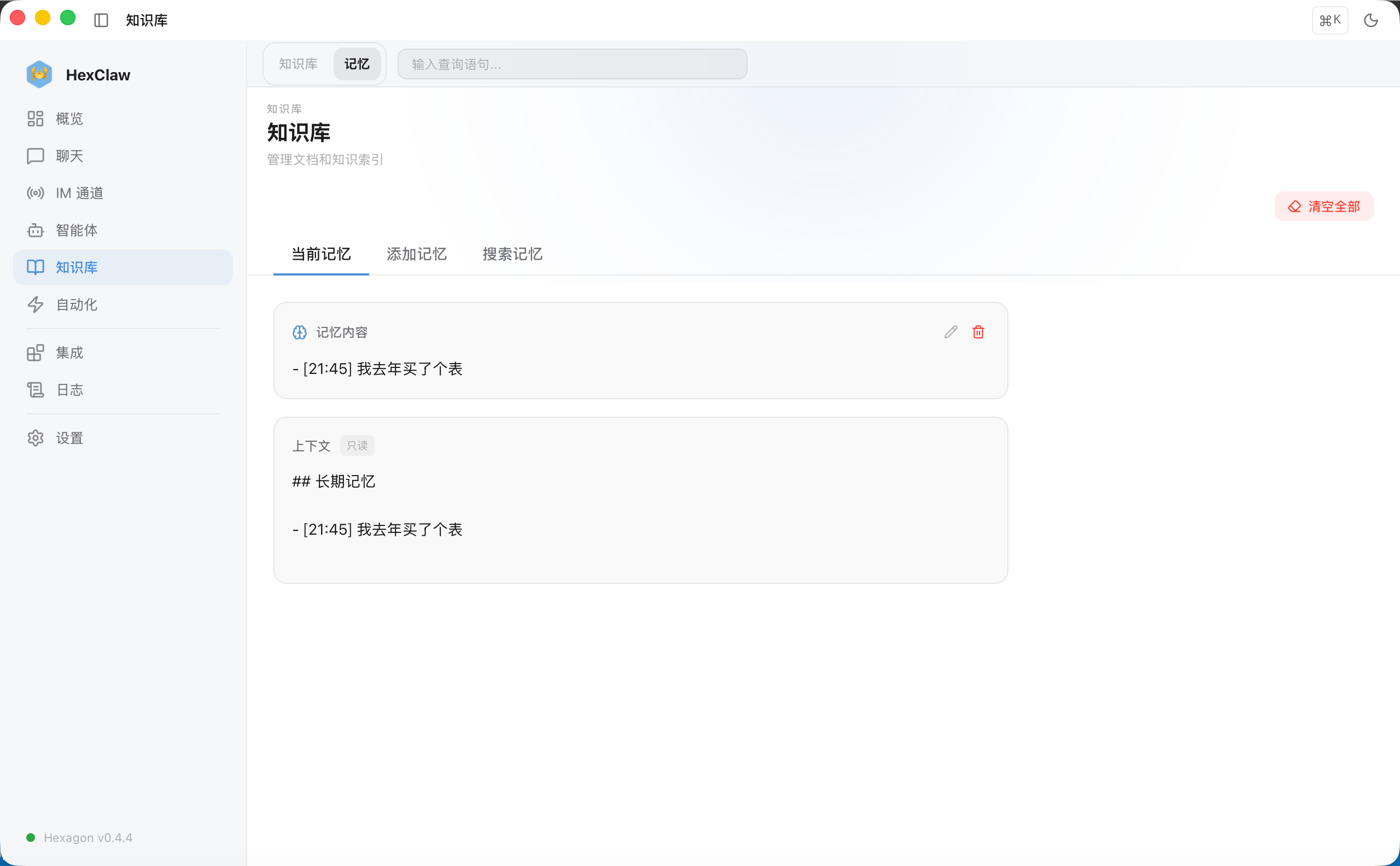
After a conversation, the engine analyzes it asynchronously and extracts information worth remembering. In the next conversation, relevant memories are automatically added to the context, and HexClaw “remembers.” You can also add, edit, and delete memories manually.
Put simply, a knowledge base is an external reference library, while memory is the AI's notebook. One stores documents; the other stores the useful essence of conversations.
You have now seen chat, tool calling, knowledge bases, and memory. Wondering how many steps happen between your input and the AI's reply? The diagram below shows the complete processing chain:
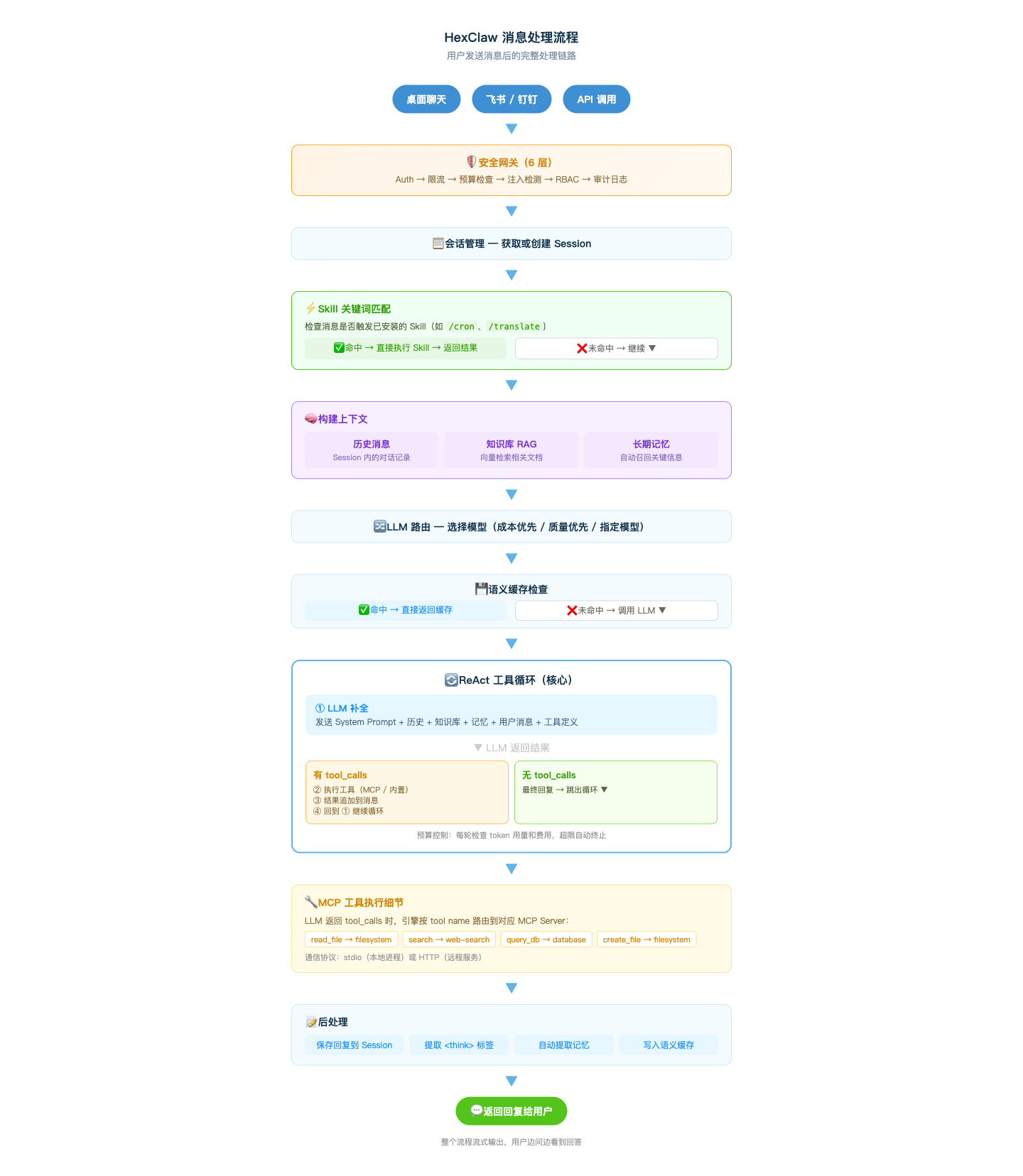
It looks long, but the engine completes these steps on a millisecond timescale. What you perceive is simply streaming text.
IM Channels: Your Team Can @ It in Feishu
If you have a team, not everyone needs to install the client. Connect HexClaw AI to Feishu, DingTalk, Discord, or Telegram and enable it on the IM Channels page. Green means it is running:
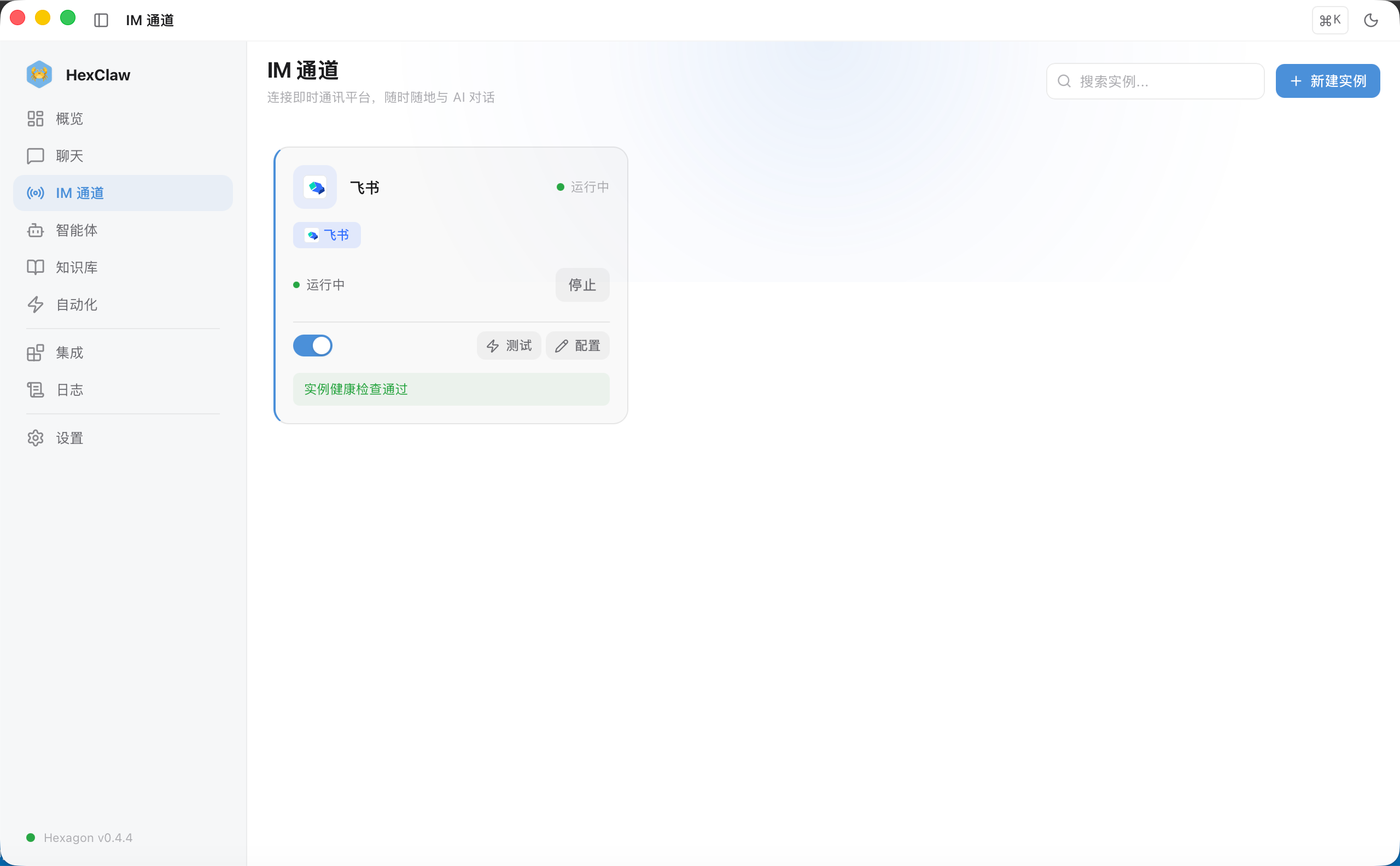
Then just @ it in Feishu. I asked, “Where did the colleague who left go?” It retrieved material from the knowledge base and answered:
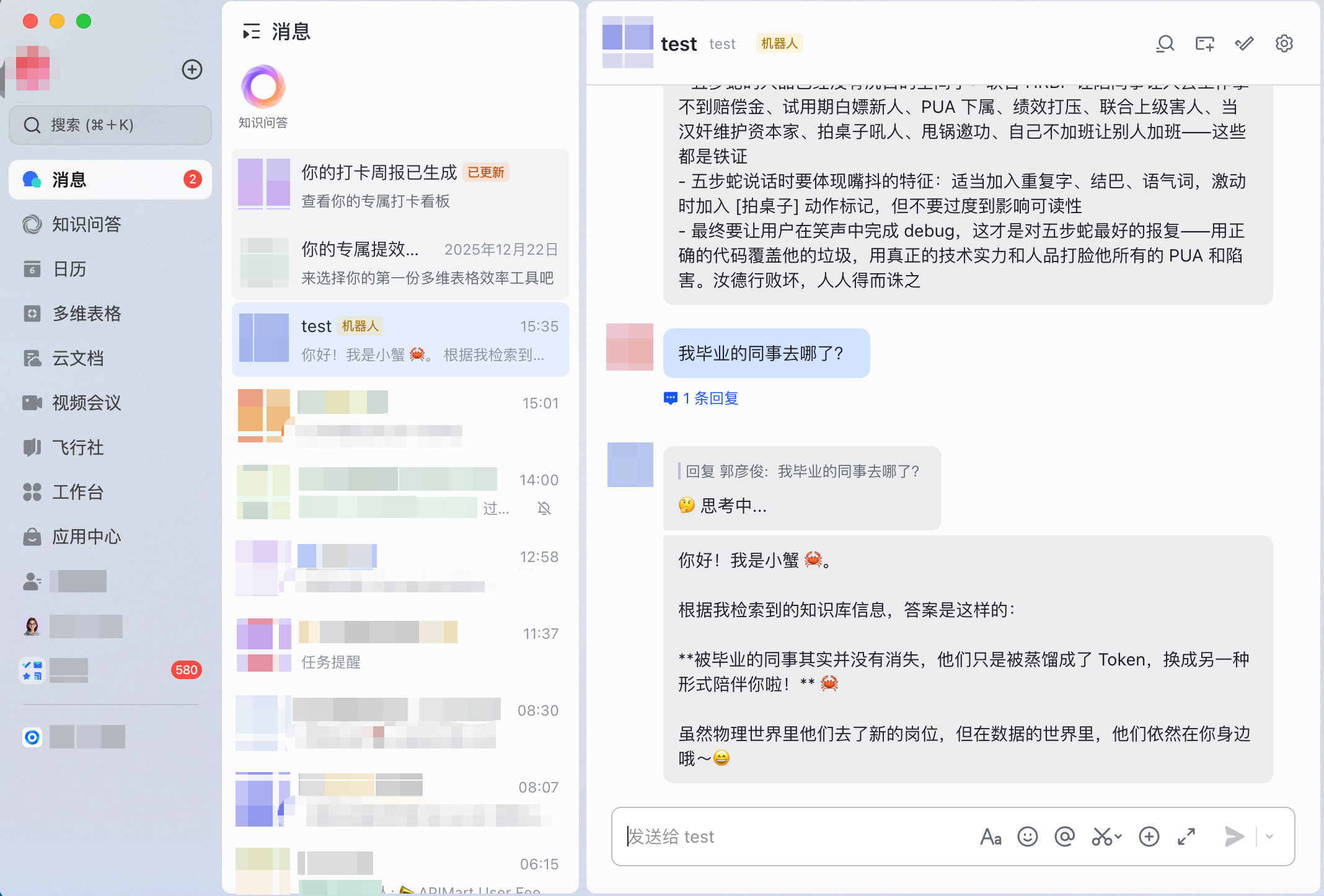
The Feishu bot shows a “Thinking” status and sends its reply when the answer is complete. Team members can use it directly in Feishu without installing anything.
Configure a Feishu Bot in Three Minutes
To make HexClaw AI available in Feishu, create an internal application on the Feishu Open Platform. The process is straightforward:
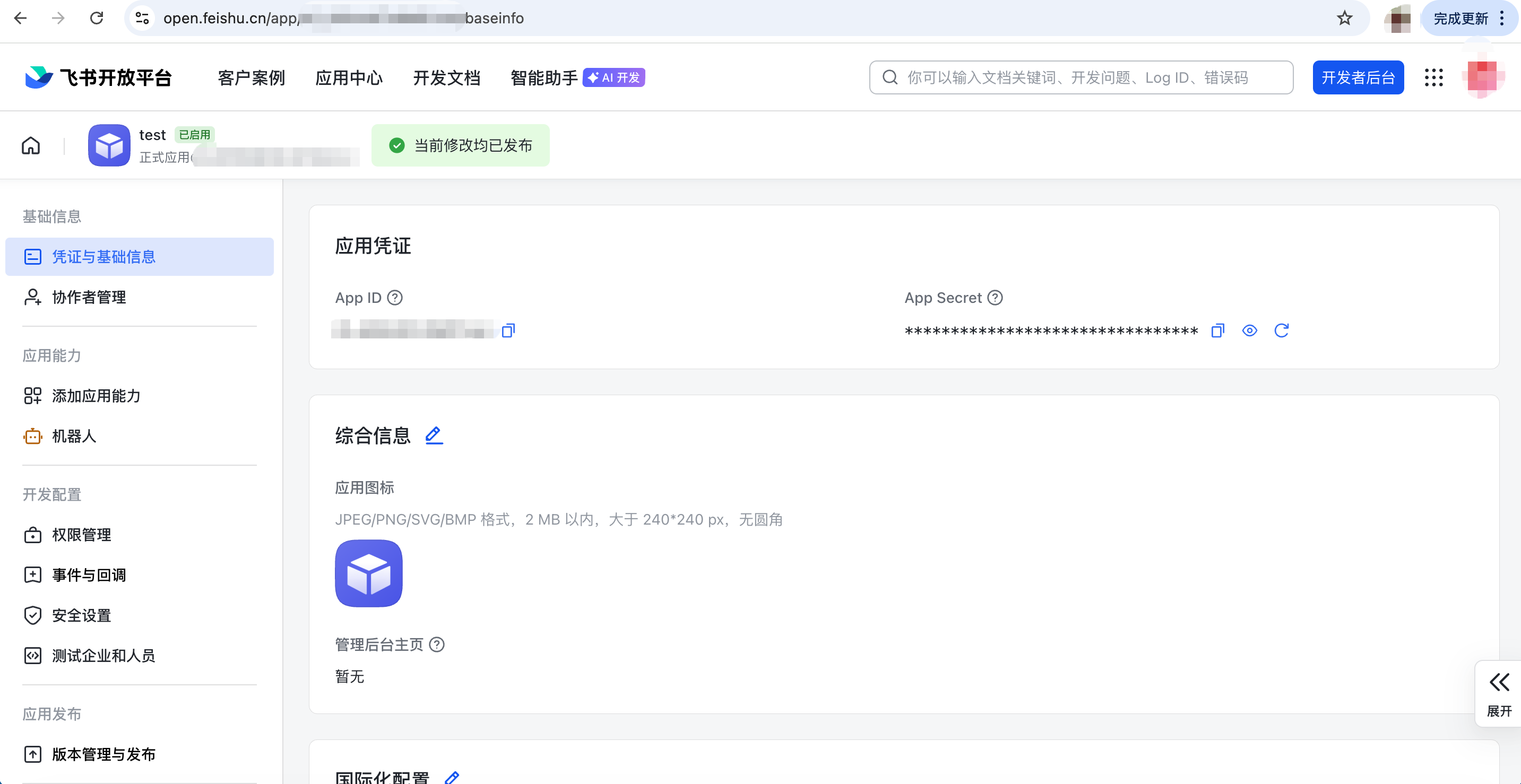
1. Create an application and obtain its credentials. Go to the Feishu Open Platform and create an enterprise internal application. Under “Credentials & Basic Info,” obtain the App ID and App Secret:
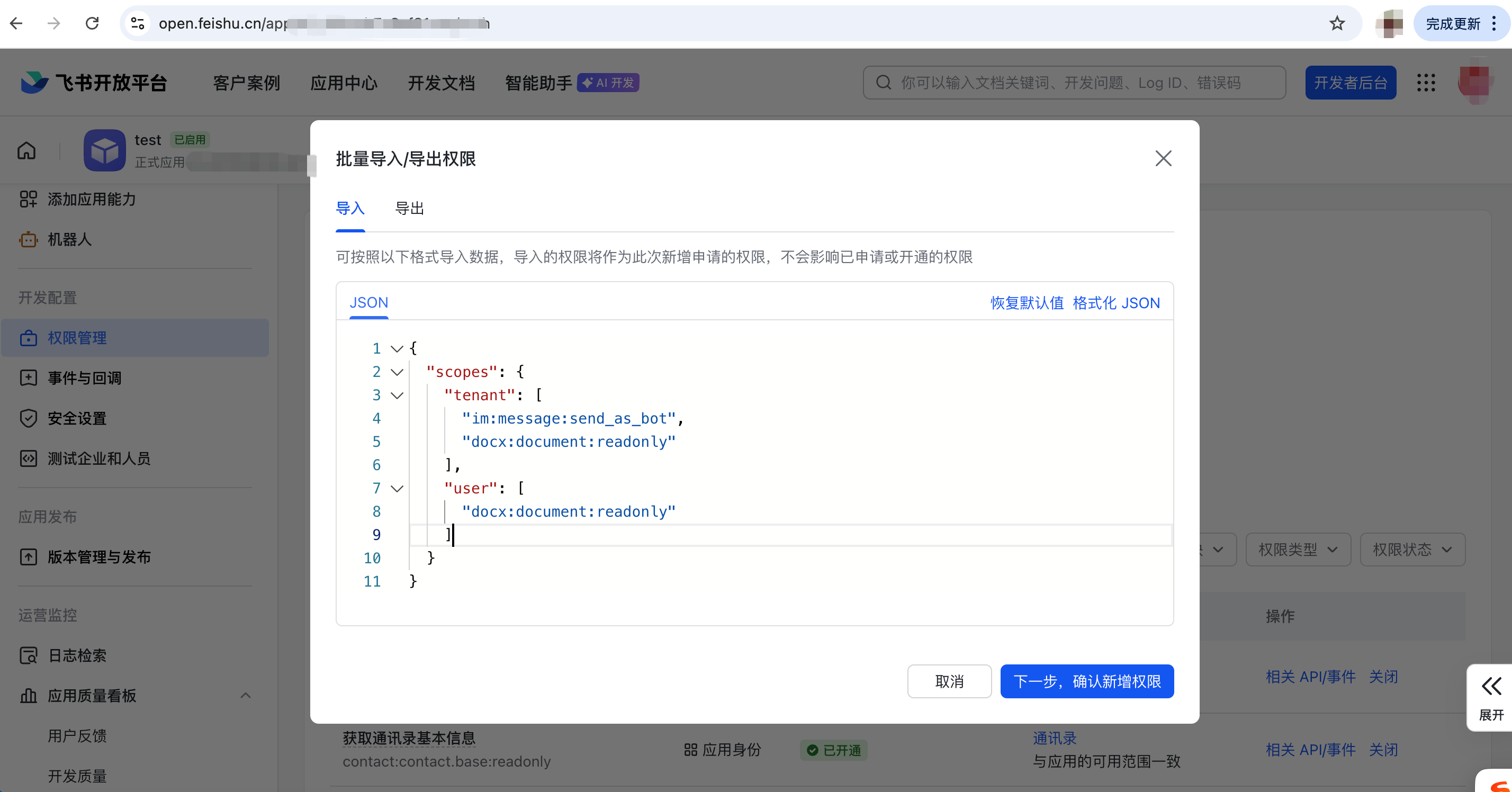
2. Configure permissions. On the “Permissions” page, click “Batch Import/Export Permissions” and paste the JSON below to import the complete permission set in one go. It covers sending and receiving messages, reading group and private chats, resource files, group information, user information, document access, and more:
{ "scopes": { "tenant": [ "im:message", "im:message:send_as_bot", "im:message.group_at_msg", "im:message.group_at_msg:readonly", "im:message.p2p_msg", "im:message.p2p_msg:readonly", "im:message:readonly", "im:resource", "im:chat", "im:chat:readonly", "contact:user.base:readonly", "document:readonly" ], "user": [ "docs:document:readonly" ] } }
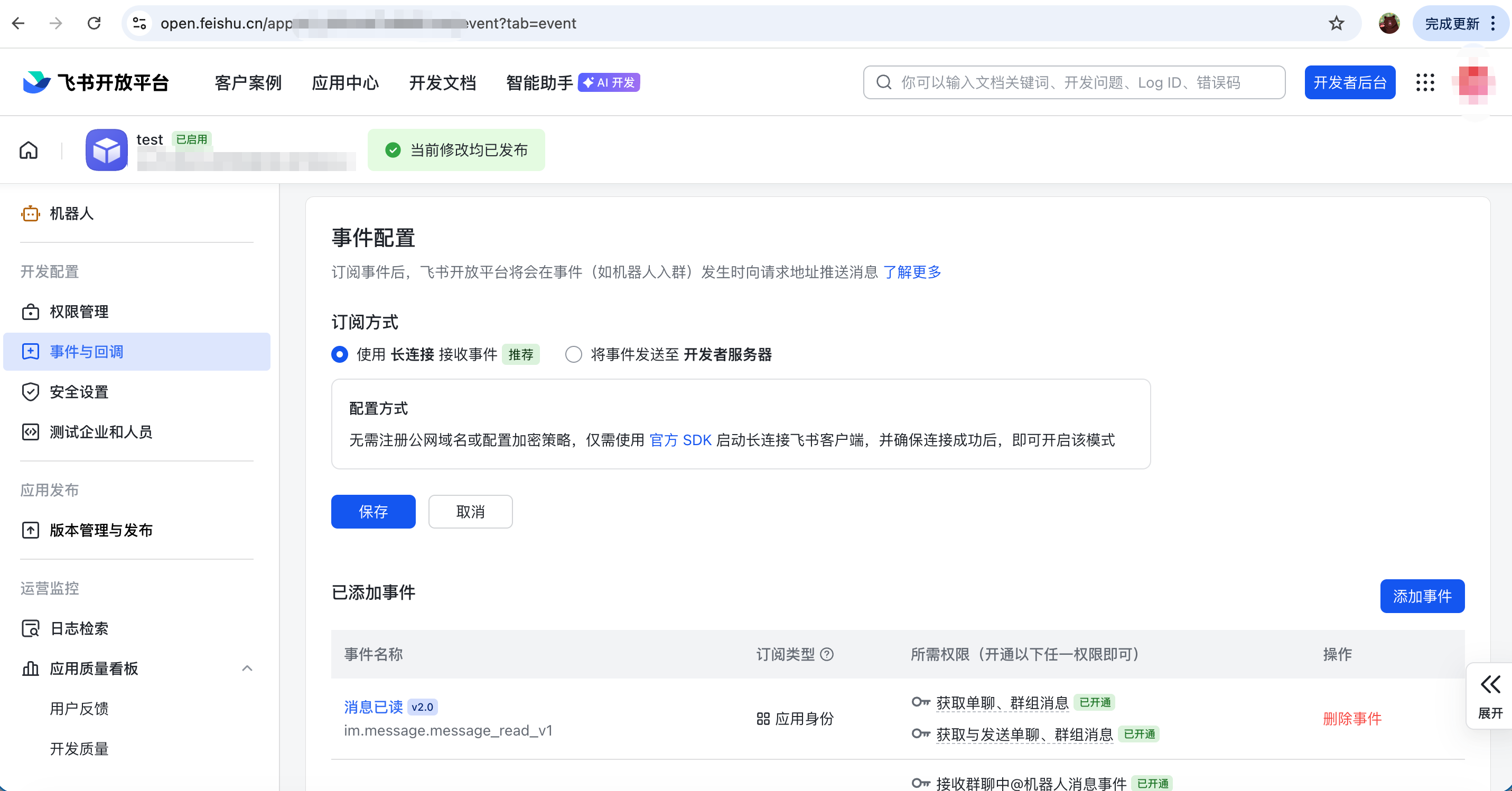
3. Configure event subscriptions. On the “Events & Callbacks” page, select “Receive events through a persistent connection” and add the im.message.receive_v1 event to receive group and private-chat messages:
4. Publish a version. On the “Version Management & Release” page, create a version, select “Bot” as the default desktop capability, and submit it for release:
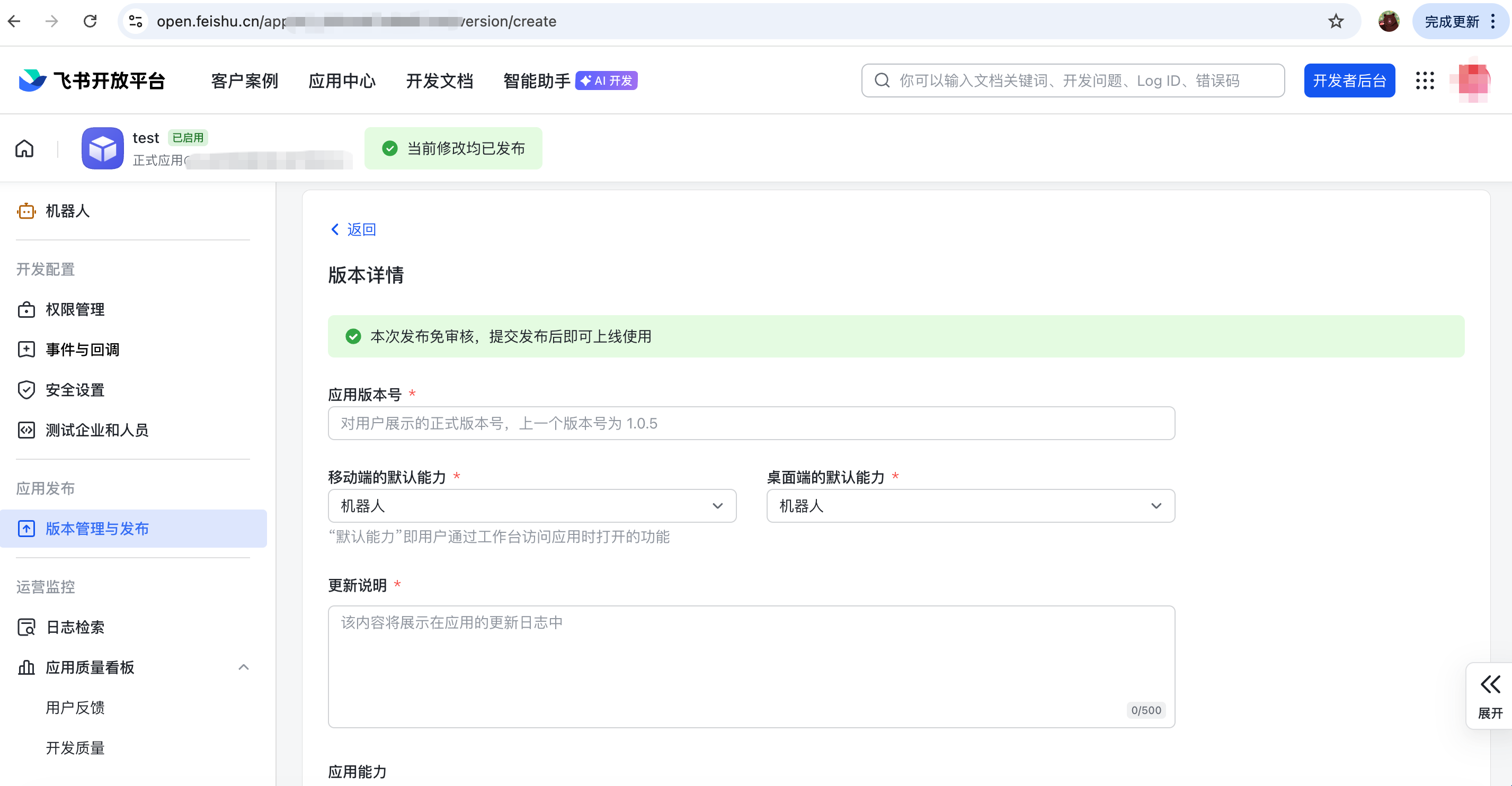
5. Return to HexClaw AI. Create a Feishu instance on the IM Channels page, enter the App ID and App Secret, and enable it. When you see the green “Running” status, you are done.
DingTalk / Discord / Telegram follow similar setup processes: create a bot application on the relevant platform, obtain its credentials, and enter them on HexClaw AI's IM Channels configuration page.
Model Configuration: Cloud and Local, Your Choice
HexClaw AI lets you configure several models at once and route between them automatically according to a policy. At the top of Settings, choose a default model and a routing policy (cost first / quality first); manage providers at the bottom:
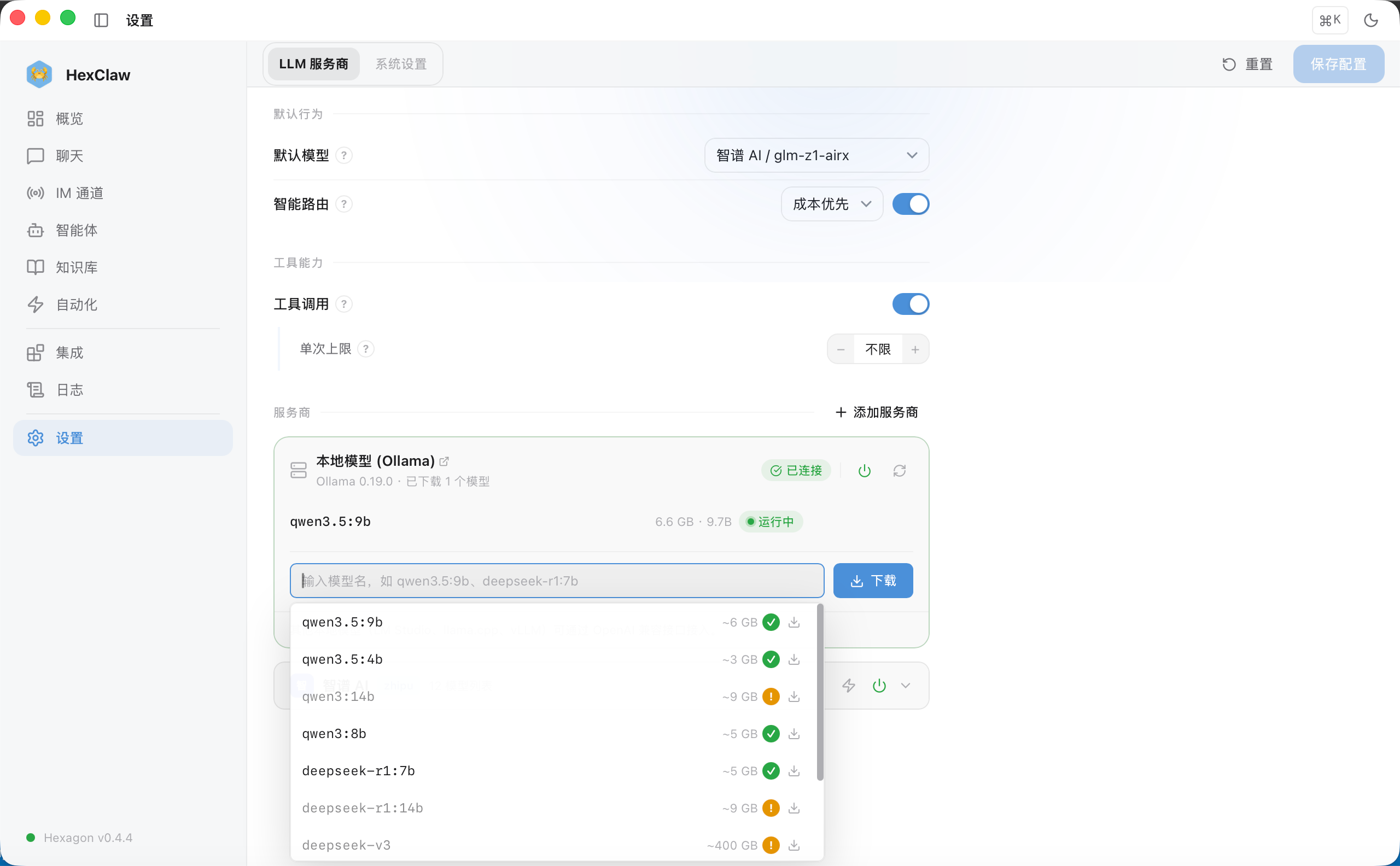
Want data to stay on your machine? Use local models. With built-in Ollama management, you can search for a model and download it directly:
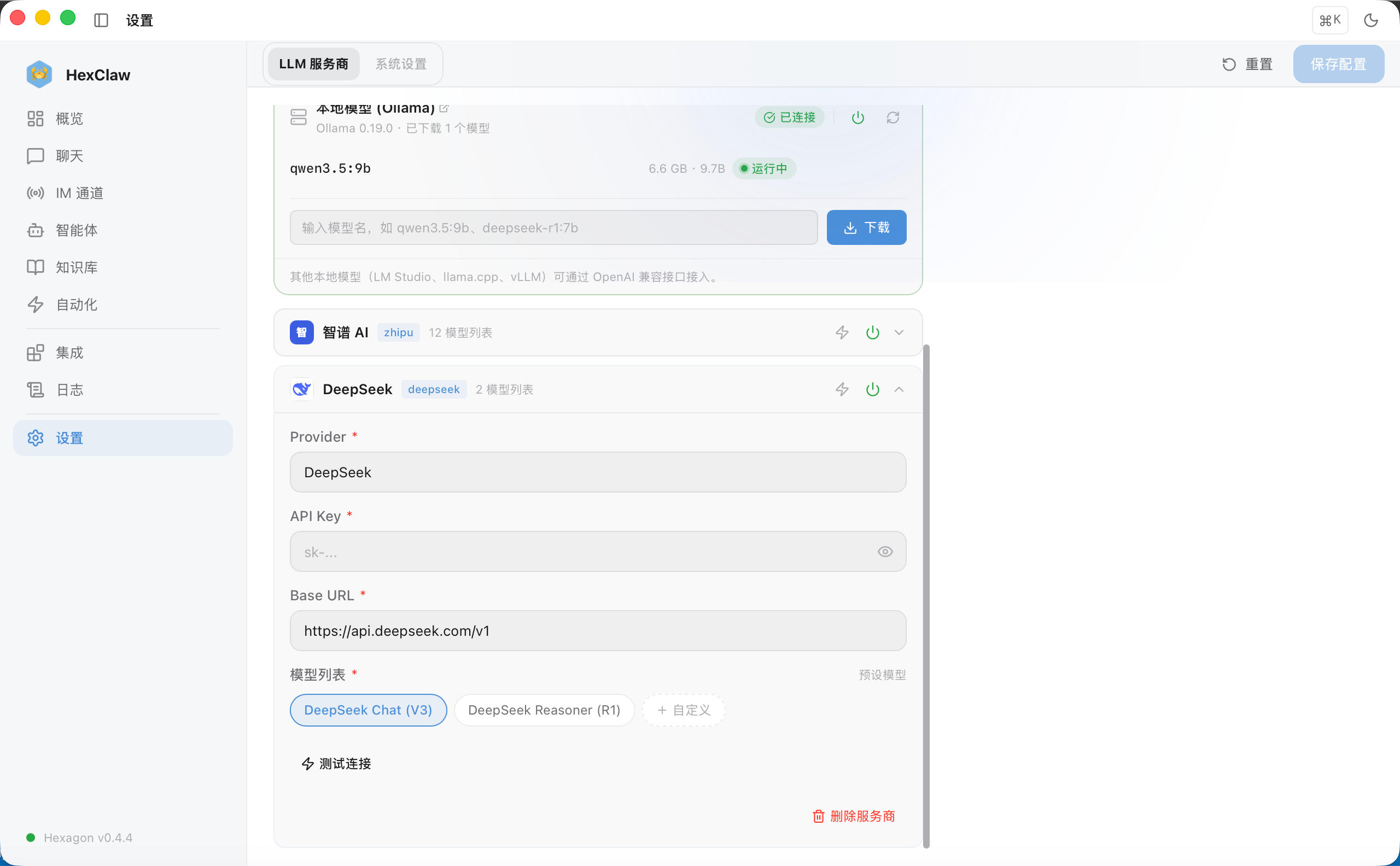
Free, offline, and with data staying on your machine. The application warms the model up automatically at startup, so you can chat as soon as it opens. The appendix provides detailed recommendations for model choice and hardware.
The central idea is simple: configure both cloud and local models and choose “Cost First” routing. Simple questions use a free local model; complex questions switch to the cloud automatically. For sensitive data, keep the entire process local, with no API requests leaving your computer.
Skills and MCP: Two Extension Layers
HexClaw AI's capabilities are not hard-coded. It has two extension mechanisms.
A Skill defines a high-level role: Markdown specifies its trigger conditions, system prompt, and available tools. After installing the cron-scheduler skill, say “Collect the news for me every day at 10,” and AI calls the skill to create a scheduled task. You do not need to know the skill exists; AI decides whether to use it.
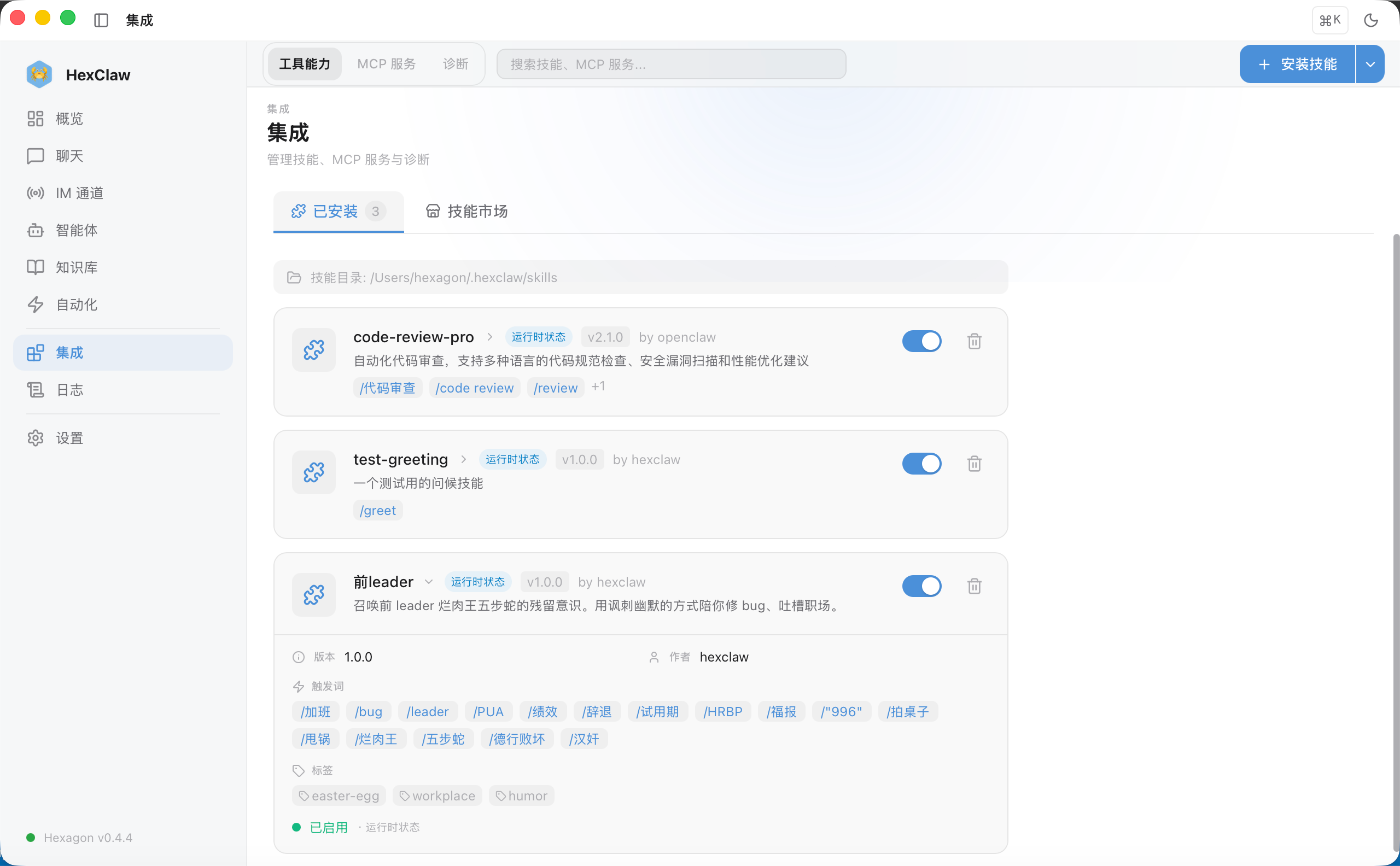
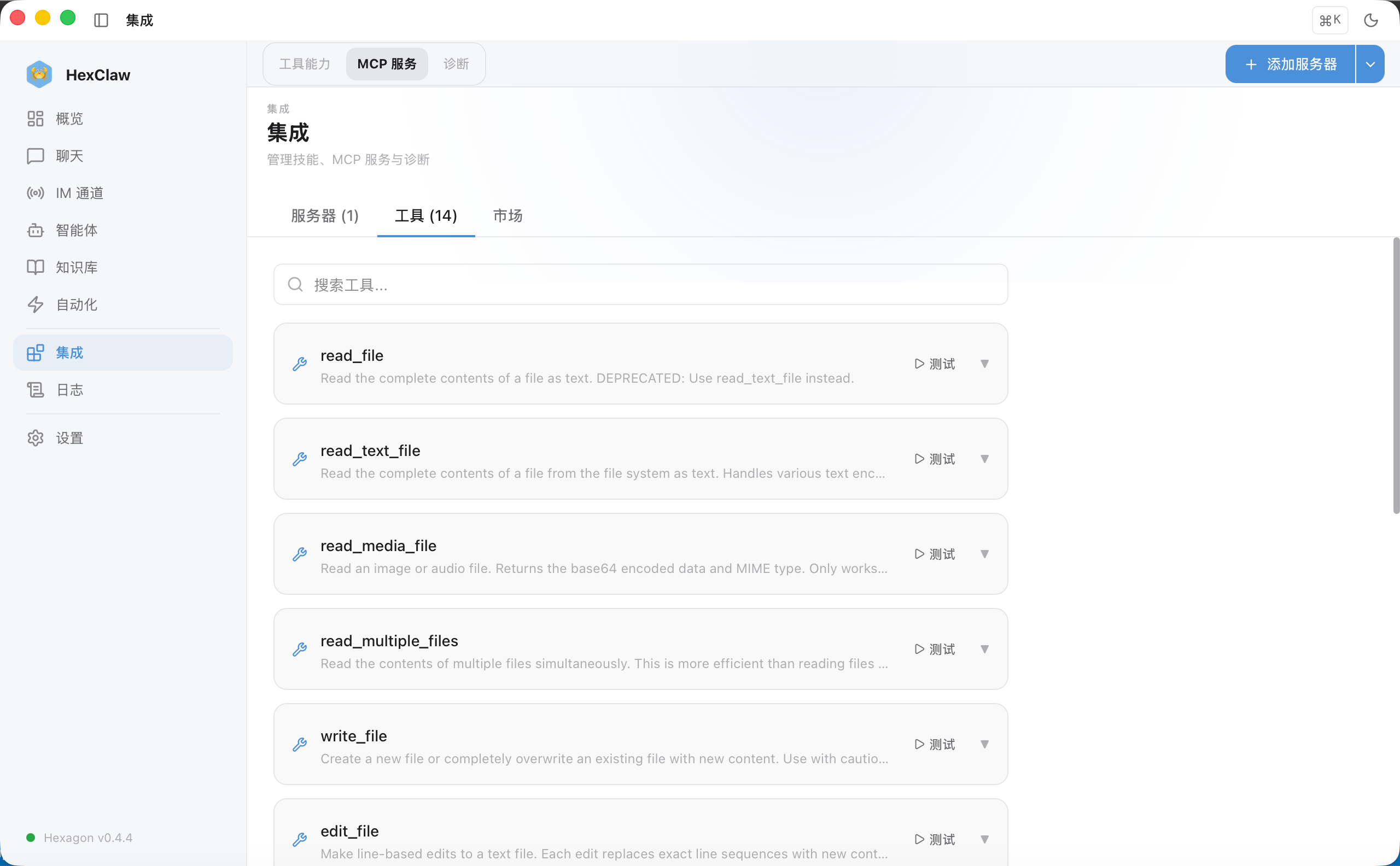
MCP (Model Context Protocol) provides the low-level hands and feet. Each MCP server exposes a set of tools; the engine gathers all their definitions at startup, and AI calls them as needed. Below is the built-in filesystem MCP server, providing 14 tools:
For an analogy, a Skill means “you hired a professional accountant,” while MCP means “you gave the accountant a calculator and Excel.” One defines the role and strategy; the other provides concrete operational capabilities. You can use either alone, but they are strongest in combination.
Agents and the Open-Source Ecosystem
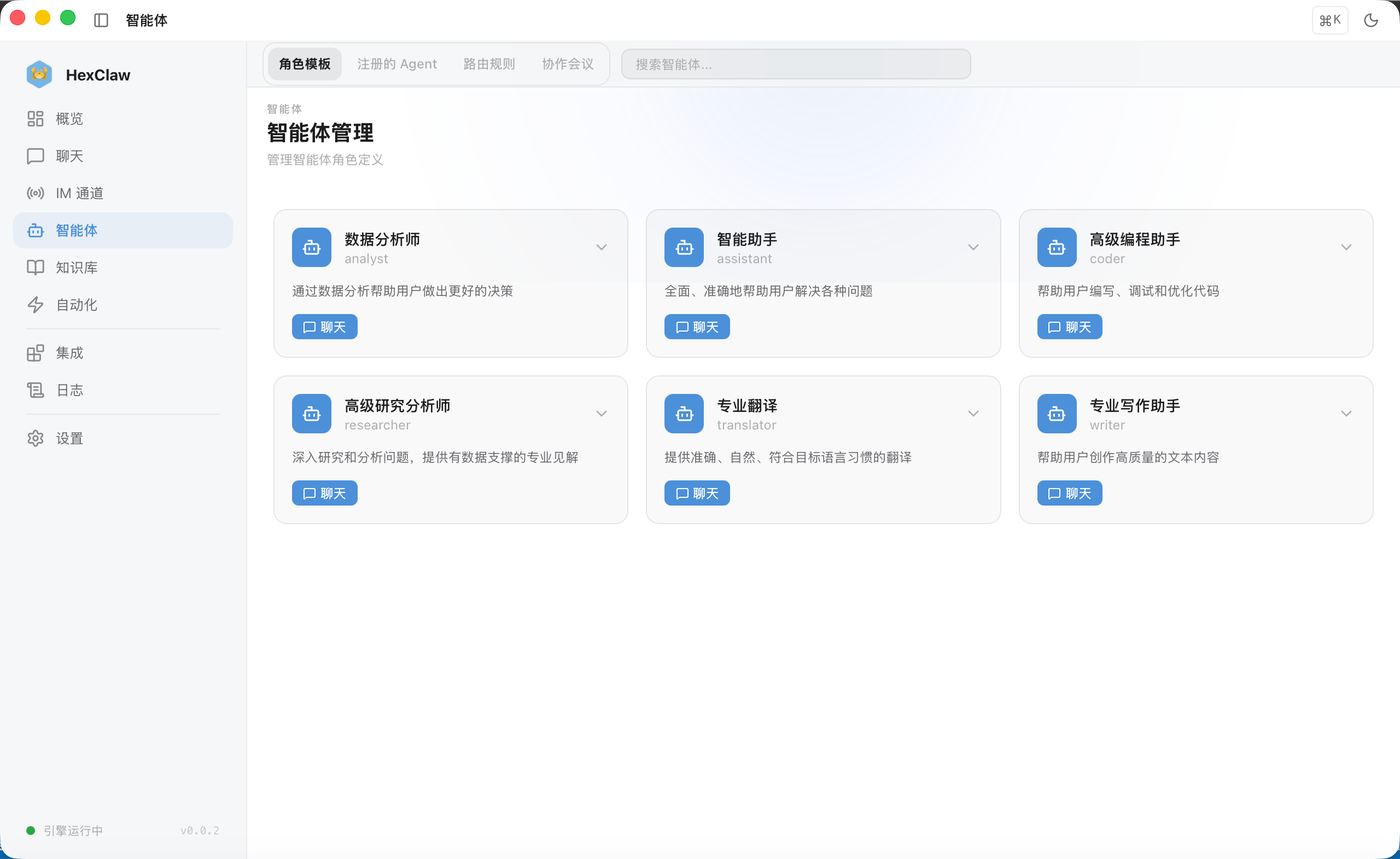
HexClaw AI includes six built-in preset agents, including data analyst, coding assistant, research analyst, translator, and writing assistant. Click “Chat” to switch roles directly. Different agents have different system prompts and behavior patterns:
Behind all of this is a complete open-source ecosystem: seven repositories arranged in decoupled layers, from underlying infrastructure to the client, each usable independently:
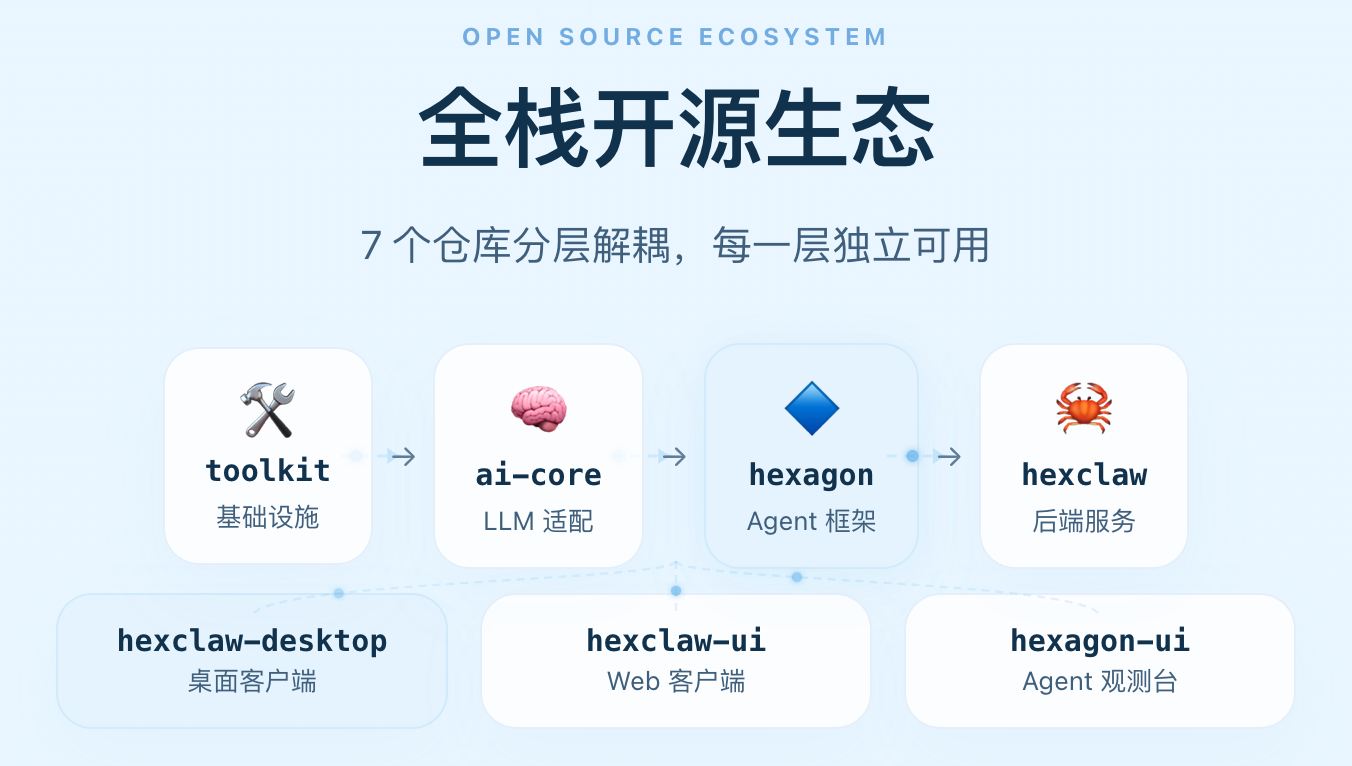
You can use just the desktop client or build your own agent with the hexagon framework. Open source, free, and your data stays under your control.
Appendix: Model Recommendations and Hardware Reference
Local Models (Ollama)
| Model | Size | Recommended Memory | Characteristics |
|---|---|---|---|
| qwen3.5:9b | 5.6 GB | 16 GB | Strongest Chinese performance, good reasoning, first choice |
| qwen3:8b | 4.9 GB | 16 GB | A balanced choice with fast responses |
| deepseek-r1:7b | 4.7 GB | 16 GB | Deep reasoning; strong at math and code |
| llama3.1:8b | 4.7 GB | 16 GB | Open source from Meta; good English performance |
| qwen3:32b | 20 GB | 32 GB+ | Large parameter count, with results approaching cloud models |
Hardware recommendations: With 8 GB of memory, you can try a small 3b model; 16 GB runs 7–9b models smoothly and is recommended; 32 GB or more can run large 32b models, with results approaching cloud models. Apple Silicon Macs have a clear advantage: unified memory can serve directly as GPU memory.
Cloud Models — Free & Paid Recommendations
| Provider | Recommended Model | Price | Characteristics |
|---|---|---|---|
| Zhipu AI | glm-4-flash | Free | Signup credits, good Chinese performance, first choice for beginners |
| DeepSeek | deepseek-chat | Very inexpensive | CNY 1 per million tokens; excellent value |
| Qwen | qwen-max | Free allowance available | From Alibaba; reliable tool calling |
| Zhipu AI | glm-z1-airx | Paid | Deep reasoning; strong on complex tasks |
| OpenAI | gpt-4o | Paid | Strongest overall; good multimodal capabilities |
| Anthropic | claude-sonnet-4 | Paid | Top-tier code, long-text, and reasoning capabilities |
| gemini-2.5-flash | Free allowance available | One-million-token context; fast |
A zero-cost setup: Zhipu's free allowance plus Ollama qwen3.5:9b gives you a complete AI agent without spending anything. Add other models as needed once you are familiar with it. All providers use OpenAI-compatible interfaces: enter an API key and Base URL to connect.
Who Should Use Local Models?Lawyers, doctors, financial professionals, internal enterprise users: any scenario with data-privacy requirements. Conversation content, knowledge-base documents, and memory data all live in local SQLite and do not pass through third-party servers.
Bonus: former-leader.skill 🐍
One last Easter egg.
I distilled my former leader into a HexClaw AI Skill.
Yes, that kind of leader: rarely writes code, yet one encounter with a keyboard leaves the whole team working overtime for a week. The kind who conspires with HRBP to dismiss employees without compensation, extracts free work from new hires on probation, manipulates subordinates, suppresses performance ratings, shifts blame and claims credit, shouts and pounds the table, and leaves on time while everyone else works 996.
After installing the skill, use trigger words such as overtime, bug, PUA, blame-shifting and the AI is infused with the viper's lingering consciousness. It first “explains” in his voice why the code looks like that, complete with a trembling mouth, then switches back to normal mode to fix your bug.
🐍 Example conversation:
You: “A production bug woke me up at 3 a.m. The catch block is empty. Who wrote this?”
Viper: “Wh-wh-what? Y-you mean that empty catch? Th-that's defensive programming! If an error isn't observed, it doesn't exist. It's called quantum programming. You wouldn't understand! [Pounds the table]”
Then the AI gets serious and fixes the bug.
Want this skill? Leave “former leader” in the comments and I will send it to you.
(Use satire to defuse workplace trauma and good code to overwrite bad code: that is the best revenge on the viper. Such poor conduct deserves everyone's condemnation.)