Agent Management
Create custom AI roles, configure models, prompts, tools, and skills, and combine agents in workflows.
What Is an Agent?
An agent is an AI role inside HexClaw. Each agent maintains its own:
- System prompt - defines role behavior and domain expertise
- Model binding - selects which model the agent should use
- Temperature - balances creativity against determinism
- Tool set - assigns MCP tools to that specific agent
- Skill set - enables installed skills on a per-agent basis
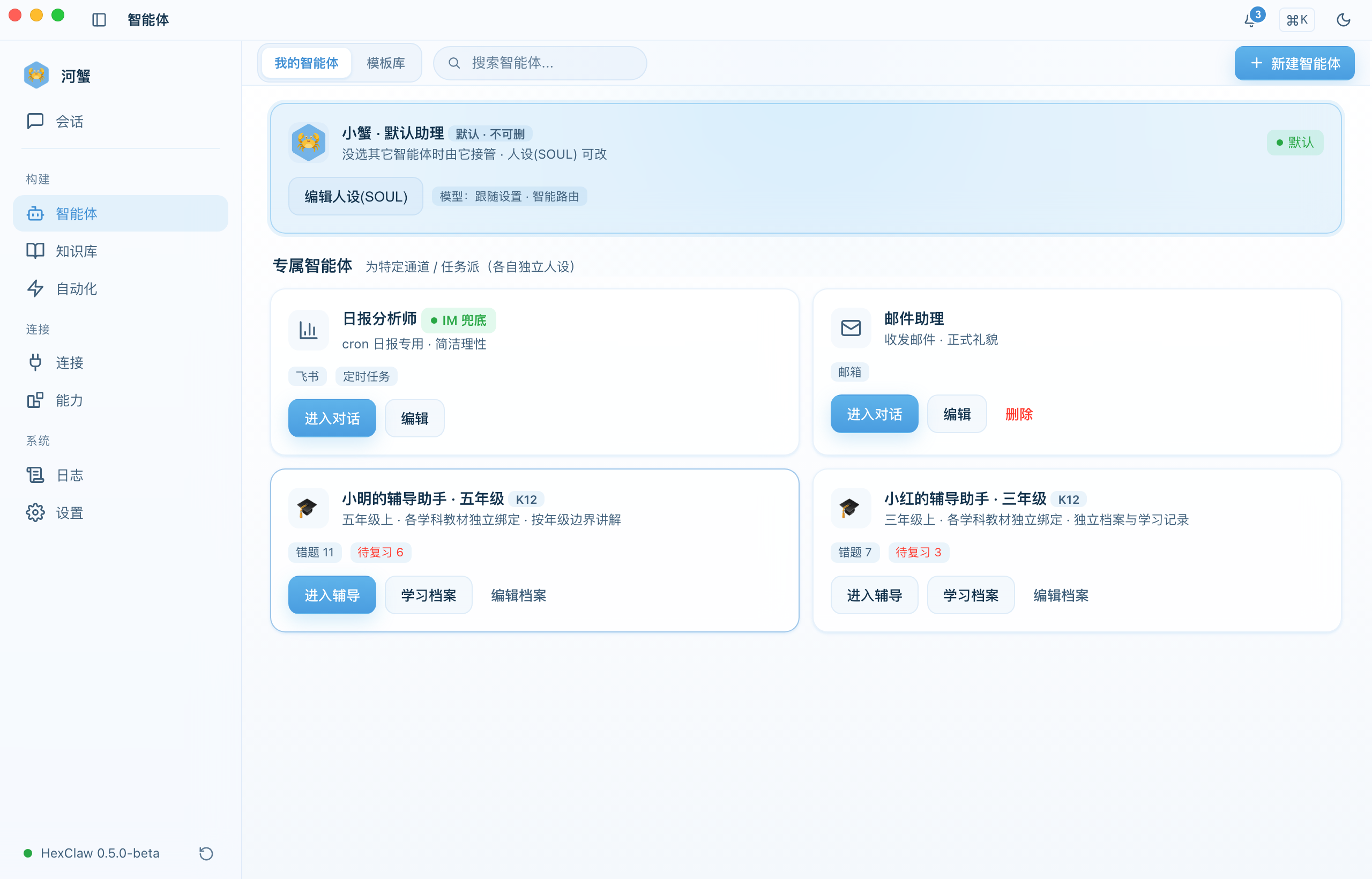
Create an Agent
- Open Agents in the sidebar and click New Agent
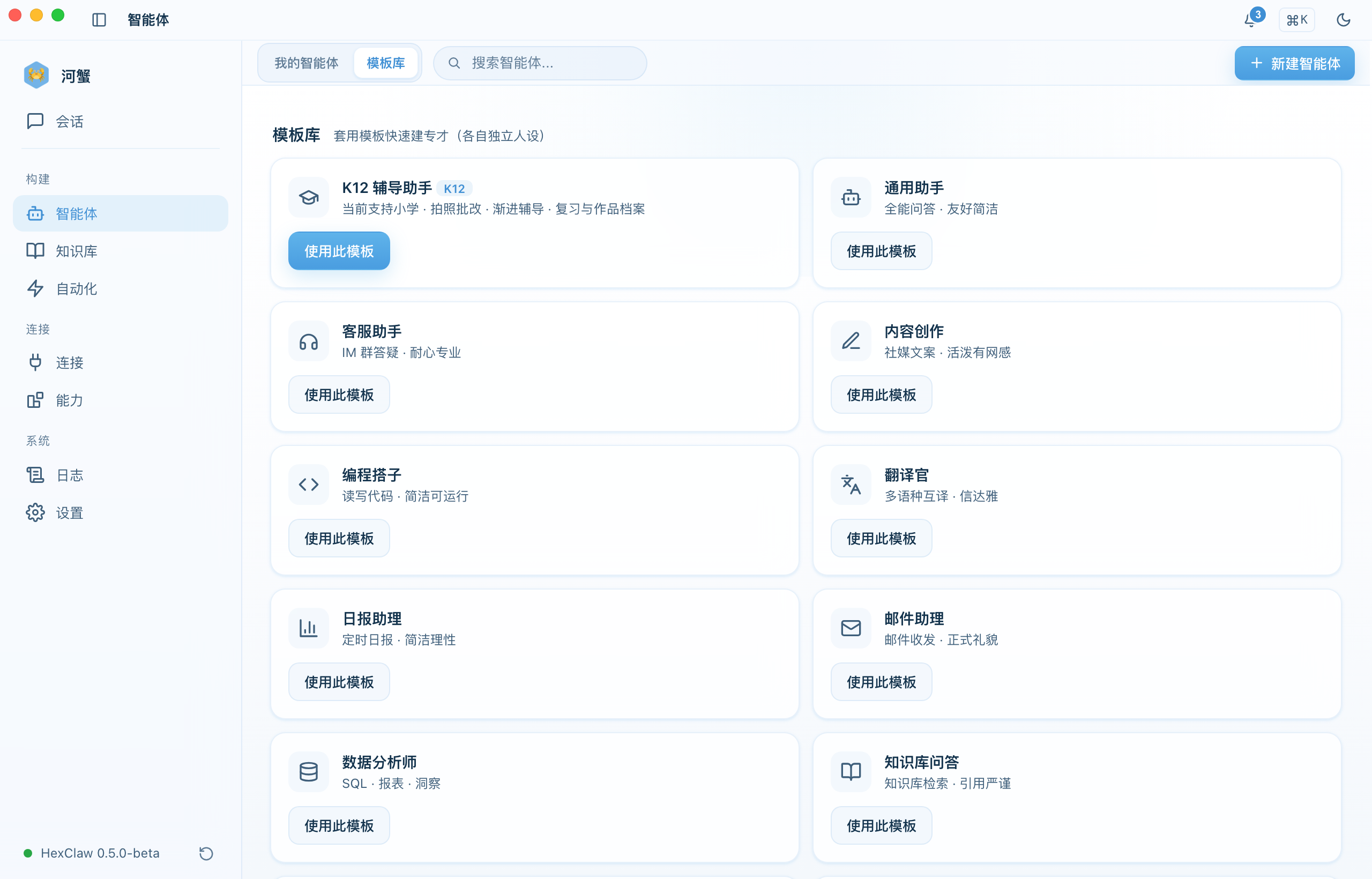
- Start from a blank agent or choose a template from Templates
- Enter an internal identifier, display name, and persona (SOUL / system prompt), adjusting the template as needed
- Optionally open the model and advanced settings to choose a provider, model, reasoning settings, temperature, tools, and skills; the model can also follow the default configuration
- Click Create & start chat, or create the agent first and enter its chat from the card later
Edit an existing agent from its card. Regular custom agents have a delete action; scenario agents such as homework tutors are managed through their profile-editing entry. The default assistant is retained.
Agent Fields
| Field | Description |
|---|---|
| name | Unique identifier, typically in English |
| display_name | User-facing label |
| description | Short summary of the role |
| system_prompt | Core prompt that defines behavior |
| provider / model | Set both together, or leave both empty to follow the default model |
| temperature | Generation temperature from 0 to 2; leave empty to follow the default configuration |
| reasoning_policy | Reasoning settings, including enabled state and effort when supported by the selected model |
| metadata | Extended role settings; use the corresponding desktop controls for options such as tool scope |
| skills[] | Enabled skills |
Chat with an Agent
Open Agents → My Agents and click Enter chat on a card to chat in that agent's context. You can also type @ in the composer and select a configured agent. Subsequent messages use the agent bound to the current session, including its persona, tools, and skills.
Chat uses one composer; there is no need to switch between separate Chat, Agent, and Deep-thinking modes. Model selection and reasoning settings are in the toolbar inside the bottom of the composer. Reasoning options follow the current model's capabilities: the model may manage reasoning automatically or offer a toggle and effort levels.
Combine Agents in a Workflow
For research, analysis, and review by different roles, configure agents on separate nodes in the workflow canvas. Define each step's inputs, outputs, and execution order, then inspect the actual node results.
This can organize design reviews, multi-angle analysis, and research tasks.
Role Details
Use Edit on an agent card to review and adjust its configuration:
- Persona — the agent's system prompt, background, and area of expertise
- Tool list — tools and skills the role can invoke
- Constraints — restrictions the agent must follow when executing tasks
Quick Start a Conversation
Click Enter chat on an agent card:
- A new session is created automatically, named after the role (e.g. "Data Analyst")
- The current session is bound to that agent, and you continue sending messages in the same composer
- Clicking the same role again navigates to the existing session instead of creating a duplicate
Agent Route Management
Manage an agent's model binding when creating or editing it to choose the provider and model it uses:
- Follow the default — leave both provider and model empty to use the selected service's default model
- Bind a dedicated model — select a provider and one of that provider's models together
- Change the binding — use Edit on the agent card; clear both provider and model to follow the default again
Role Definition Reference
A self-hosted service can declare initial agents under router.agents in hexclaw.yaml. This example follows the service's default model:
router:
  enabled: true
  default_agent: researcher
  agents:
    - name: researcher
      display_name: Research Assistant
      description: Organize material into a report with sources
      system_prompt: |-
        Organize material, compare views, and produce a structured report.
        Cite sources actually retrieved and identify unverified information.
      skills: []
These definitions seed a database that has no agents; they do not overwrite agents already saved. Use the desktop Edit action or the agent API for ongoing changes. The API reference follows the current main branch; check your installed service's version.