Chat & Sessions
Assign tasks, use connected resources, and review answers, documents, and generated media in one conversation.
Basic Chat
Open the Chat page to start a conversation. HexClaw supports:
- Streaming responses - token-by-token rendering while the model is generating
- Markdown rendering - full Markdown support with syntax highlighting for code blocks
- Model switching - swap providers and models at any point within the same session
- Message actions - copy, edit, and regenerate responses
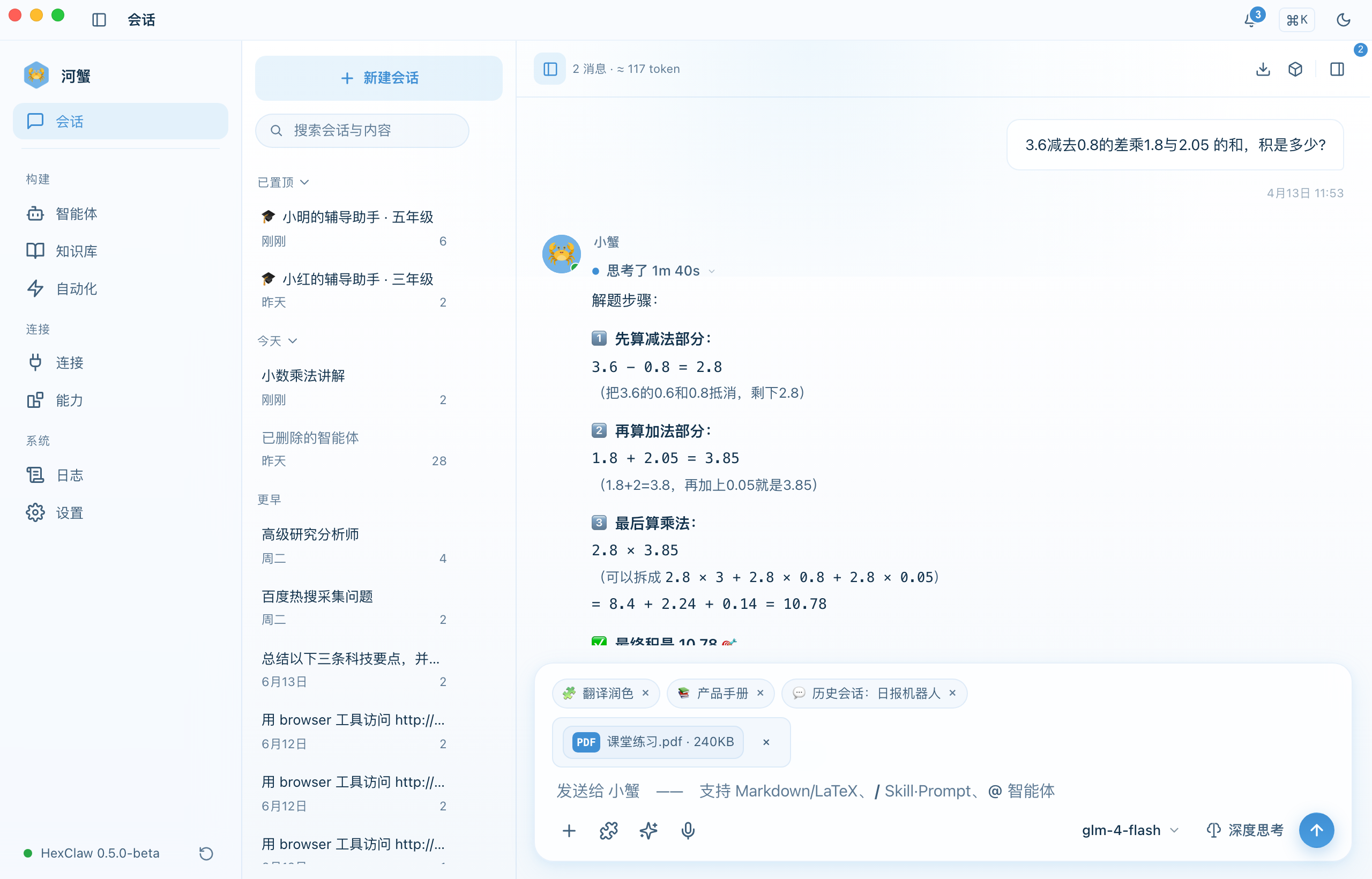
Files & Multimodal Inputs
The composer supports multiple attachment types depending on the selected model's capabilities:
| Input Type | Requirements |
|---|---|
| Images | The selected model and provider must support image understanding. |
| Video | The selected model and provider must support video input and the file must meet their requirements. |
| Audio | Transcription, speech synthesis, and audio conversations use their respective available services; see below. |
| Files | Supported documents are extracted into context. Processing depends on the format, model, and selected service. |
Generate Images, Audio, and Video
Describe what you need in a conversation and the agent can use configured media tools. With a dedicated image or video generation model selected, use the same composer to submit your request. Generation, editing, and playback depend on the model, tools, and receiving channel.
- Images — View and save generated results. Editing an existing image requires a model that supports image editing.
- Audio and video — Follow task progress, then play or save the available result. Audio can be retained with its corresponding text.
- Reopen results — Saved media stays associated with its conversation and can be viewed again from history while the service retains the files. Older results that only contain temporary external URLs depend on those URLs remaining valid.
Use Work Resources in Chat
Ask about installed Skills, connected MCP servers, existing agents, or knowledge documents, then request actions supported by your current permissions and tools. Use Knowledge, Capabilities, Automation, or Connections for configuration. See Advanced Features for the resource workflows.
Progress, Interruptions, and Results
Follow responses, tool activity, and actual artifacts as a task runs. You can stop the current request; tasks that support resumption recover state using the original request. If a result is marked unknown, inspect the original task and existing artifacts before deciding what to do next, to avoid duplicate generation, charges, or delivery. Stopping your wait does not mean an external operation has been undone.
Session Management
- New session - click the "+" button in the sidebar
- Session history - browse and reopen prior conversations from the left panel
- Delete session - right-click the conversation in the session list and choose Delete
- Persistent storage - sessions and messages belong to the selected HexClaw service: on this device for local service, or on the server for cloud service. Switching services does not automatically migrate or merge data.
Artifact Preview
When a response contains code or structured output, HexClaw can extract it into an artifact:
- Supported types:
code,html,markdown, andfile - Code artifacts include syntax highlighting and one-click copy
- HTML artifacts can be previewed live in the side panel
Message Search
Enter keywords in the search field above the session list to find conversations and message content stored in the current service. Select a result to open its conversation.
Exporting Messages
Use the download button in the conversation toolbar to open the export menu. HexClaw supports three formats:
- JSON - structured data for backup and re-import
- Markdown - readable output for archiving and sharing
- PDF - formatted output for formal documentation
@ Mentions
Type @ to reference an agent, knowledge document, connection, or existing conversation. Select Skills from the composer's skill control; available resources come from the current service.
Agents and Thinking Settings
Questions and task requests share the conversation entry point. Opening a conversation from an agent instance uses that instance's role, knowledge, and tool configuration.
When supported by the model, enable deep thinking from the composer's thinking settings and choose an available reasoning effort. Visible reasoning and the applied setting depend on the model response. Enabling thinking does not mean a web search has occurred; search requires an available tool and an actual invocation.
Document Parsing
You can upload document files directly in chat. HexClaw automatically extracts text content and sends it to the LLM as context:
| Format | Supported Types |
|---|---|
.pdf — extracts text from all pages, displays page count | |
| Word | .docx — extracts body content |
| Excel | .xlsx / .csv — extracts each sheet as tabular text |
| Plain text | .txt / .md / .json |
Text exceeding 50,000 characters is automatically truncated with a warning.
Message Actions
Context Menu
Right-click (or long-press) on a message bubble to open the context menu:
- Copy — copy the message content to the clipboard
- Retry — delete the current reply and regenerate
- Edit — modify a sent user message and fetch a new response
- Delete — remove the message (also deletes the database record)
Session Renaming
In the left session list, double-click a session title to rename it directly. You can also choose "Rename" from the context menu.
Token Count
The toolbar displays an estimated token count for the current session (e.g., ~1.2k tok), helping you gauge context window usage.
Voice Input, Read-Aloud, and Audio Conversations
- Voice input — Start recording from the composer. Sending finishes transcription and sends the text as a message; you can also cancel the recording. Microphone permission and an available recognition channel are required.
- Read-aloud — Convert text to playable speech using a configured speech synthesis service.
- Audio conversation — Select an audio conversation model registered by the service for a single audio input and response. Results can contain audio and a transcript. This is separate from speech-to-text input.
Chat Shortcuts
| Shortcut | Action |
|---|---|
Enter | Send message |
Shift + Enter | New line |
@ | Reference an agent, knowledge, connection, or session |
Use the stop button in the input area to stop the current response. See Keyboard Shortcuts for application shortcuts.